Importing Documents
Import Document brings the content of an existing file straight into the editor. Headings, lists, tables, links, images and text styling are carried across where the file has them, so documentation written in Word, Google Docs or another tool doesn't need to be retyped. Nothing is saved until the page is saved, so an import can be checked and tidied first. Import Document is an editor extension, available on Pro and Enterprise plans. It can be used by staff who can create or edit pages or spaces. Supported files Word: .docx PDF: .pdf Web pages: .html and .htm Markdown: .md and .markdown Text: .txt Zip: a .zip containing one HTML or Markdown document and its images Files must be within the site's upload limit, which is 100MB by default. To increase upload limits, contact our support team. Files with images Word documents and PDFs carry their images inside the file, so they can be imported on their own. HTML and Markdown files keep their images as separate files. To bring the images across, place the document and its images in a .zip and import the zip. Exports from Google Docs (File > Download > Web Page) and most Markdown tools are already in this format. Images that point to a public web address are copied into Docvora during the import. Importing a document Open the page or space in the editor. Select the Extensions button in the editor toolbar, then select Import Document. Typing /import in the editor opens the same option. Select Choose a file, or drag a file onto the window. If the page already has content, choose where the document should go. Select Import. Where the document goes When the page already has content, two options are available: Add at the cursor: the document is placed where the cursor was, keeping what's already on the page. Replace the page's content: everything in the editor is swapped for the document. Page title When Use the document's title as the page title is ticked, the document's title fills the page title, and the matching heading is taken out of the content so it doesn't appear twice. The option is ticked automatically for pages without a title. After importing Once the import finishes, the content appears in the editor and can be edited like any other content. Review it, make any changes, then save or publish the page as usual. If anything couldn't be brought across exactly, the window stays open and lists what to check, such as images that were left out. Select Done to close it. Undoing an import An import can be undone straight away with Ctrl + Z (⌘ + Z on a Mac), the same as any other change in the editor. What comes across Docvora carries across the following where the file has them: Headings, paragraphs and line breaks Bulleted and numbered lists, with checklists shown as ☐ and ☑ items Tables Links Images Bold, italic, underline, strikethrough and highlighted text Text colours, matched to the closest colour in the site's theme Code, quotes and dividers Notes and callouts, which become information panels Markdown callouts such as > [!NOTE] and > [!WARNING] also become information panels. Things to check Some content can't be converted exactly. Docvora lists anything affected in the summary after the import. Scanned PDFs: a PDF with no selectable text, such as a scan, is imported as pictures of each page. Charts, diagrams and embedded objects: these can't be imported. Add them to the page as images instead. Images in EMF or WMF format: these older Word formats can't be shown on the web and are left out. Images linked from outside the document: images that are linked rather than saved inside a Word file can't be imported. Missing images: an HTML or Markdown file imported on its own can't include its image files. Import it as a zip instead. Zips with more than one document: only one document is imported from each zip. Import the others one at a time. PDF layout: PDFs don't store tables or text colours in a way that can be rebuilt, so these may need tidying after the import. Unsupported files These files can't be imported directly. Each one can be saved as a supported file first. Older Word files (.doc) and Rich Text (.rtf): open the file in Word and save it as a .docx. OpenDocument (.odt): save the file as a Word .docx. Apple Pages (.pages): export the document as Word (.docx) or PDF. Saved web archives (.mht, .mhtml): save the page in the browser as "Web Page, HTML only" and import that. Password protected PDFs: remove the password, then import the PDF again. Limits Large files are supported, with a few limits to keep imports reliable: A conversion can take up to two minutes. Very large files may need to be split into parts. PDFs import up to their first 300 pages. Up to 200 images are imported from a single document. Each image can be up to 25MB. If several large files are being imported at once, Docvora may ask for the import to be tried again a minute later.
Import Document brings the content of an existing file straight into the editor. Headings, lists, tables, links, images and text styling are carried across where the file has them, so documentation written in Word, Google Docs or another tool doesn't need to be retyped.
Nothing is saved until the page is saved, so an import can be checked and tidied first.
Import Document is an editor extension, available on Pro and Enterprise plans. It can be used by staff who can create or edit pages or spaces.
Supported files
Word:
.docxPDF:
.pdfWeb pages:
.htmland.htmMarkdown:
.mdand.markdownText:
.txtZip: a
.zipcontaining one HTML or Markdown document and its images
Files must be within the site's upload limit, which is 100MB by default.
To increase upload limits, contact our support team.
Files with images
Word documents and PDFs carry their images inside the file, so they can be imported on their own.
HTML and Markdown files keep their images as separate files. To bring the images across, place the document and its images in a .zip and import the zip. Exports from Google Docs (File > Download > Web Page) and most Markdown tools are already in this format.
Images that point to a public web address are copied into Docvora during the import.
Importing a document
Open the page or space in the editor.
Select the Extensions button in the editor toolbar, then select Import Document. Typing
/importin the editor opens the same option.Select Choose a file, or drag a file onto the window.
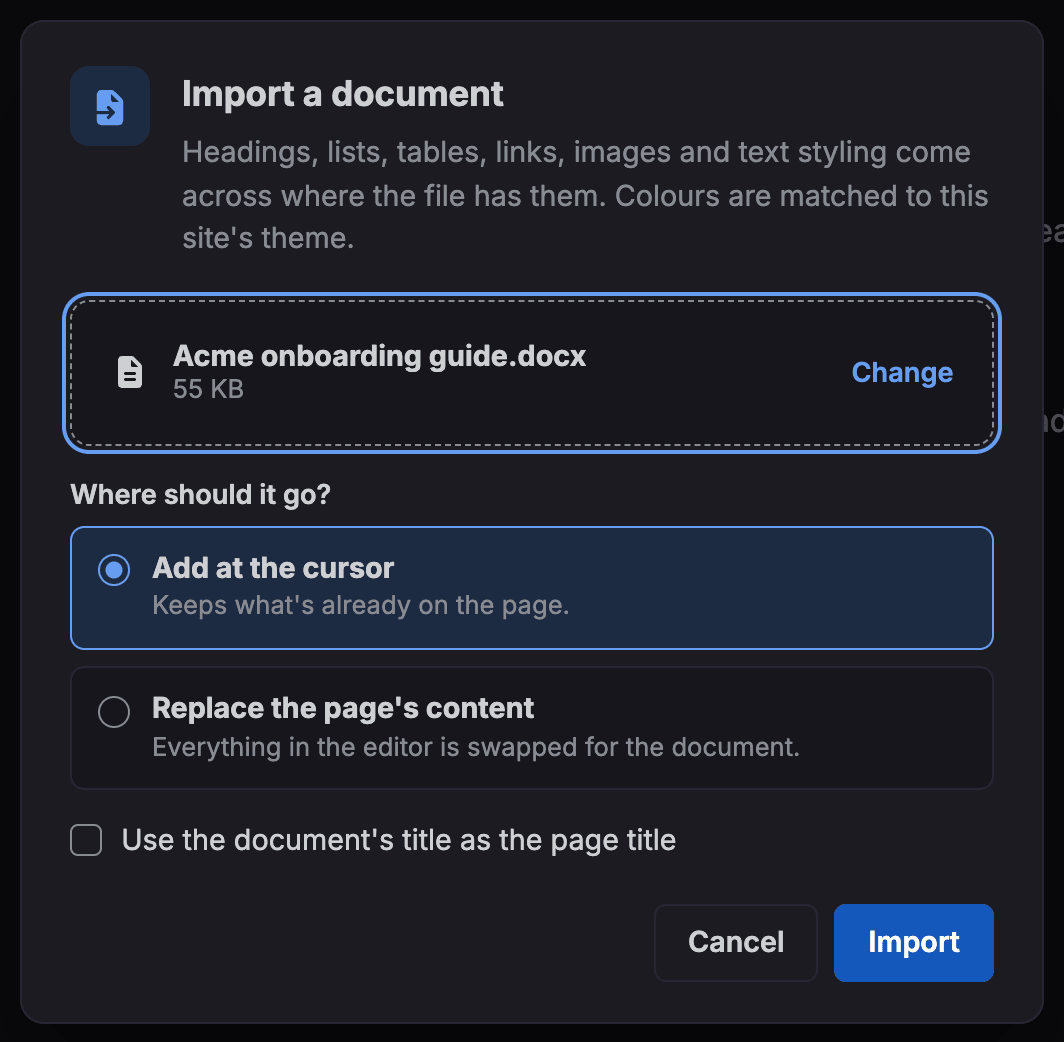
If the page already has content, choose where the document should go.
Select Import.
Where the document goes
When the page already has content, two options are available:
Add at the cursor: the document is placed where the cursor was, keeping what's already on the page.
Replace the page's content: everything in the editor is swapped for the document.
Page title
When Use the document's title as the page title is ticked, the document's title fills the page title, and the matching heading is taken out of the content so it doesn't appear twice. The option is ticked automatically for pages without a title.
After importing
Once the import finishes, the content appears in the editor and can be edited like any other content. Review it, make any changes, then save or publish the page as usual.
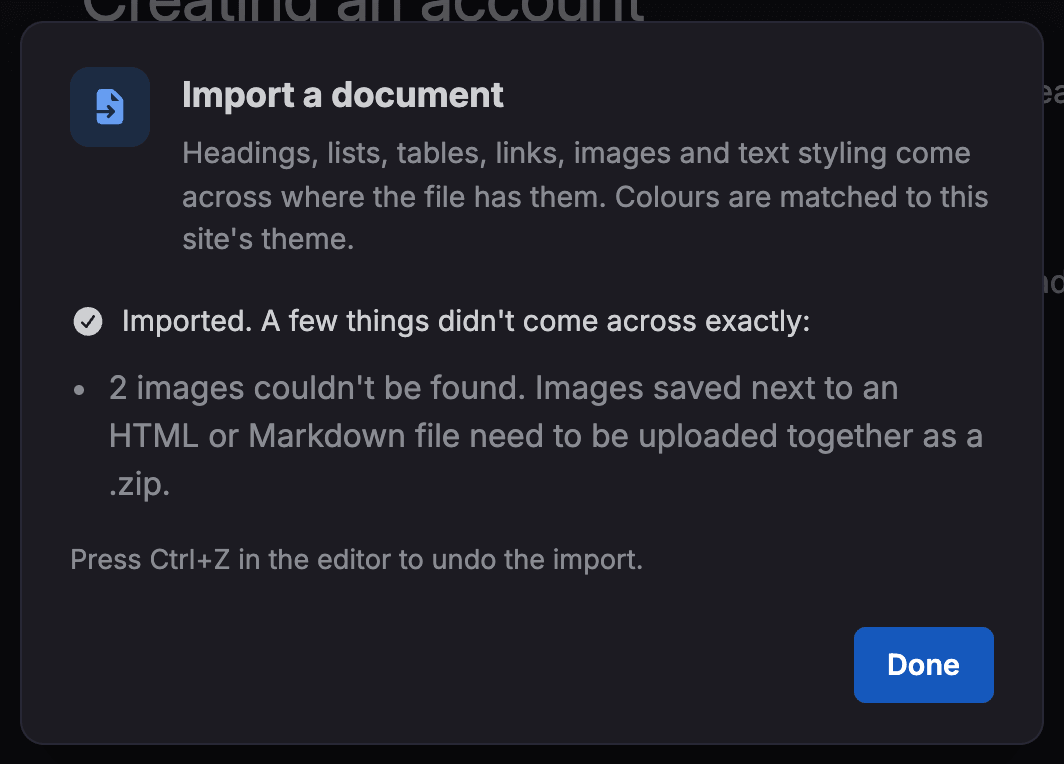
If anything couldn't be brought across exactly, the window stays open and lists what to check, such as images that were left out. Select Done to close it.
Undoing an import
An import can be undone straight away with Ctrl + Z (⌘ + Z on a Mac), the same as any other change in the editor.
What comes across
Docvora carries across the following where the file has them:
Headings, paragraphs and line breaks
Bulleted and numbered lists, with checklists shown as ☐ and ☑ items
Tables
Links
Images
Bold, italic, underline, strikethrough and highlighted text
Text colours, matched to the closest colour in the site's theme
Code, quotes and dividers
Notes and callouts, which become information panels
Markdown callouts such as > [!NOTE] and > [!WARNING] also become information panels.
Things to check
Some content can't be converted exactly. Docvora lists anything affected in the summary after the import.
Scanned PDFs: a PDF with no selectable text, such as a scan, is imported as pictures of each page.
Charts, diagrams and embedded objects: these can't be imported. Add them to the page as images instead.
Images in EMF or WMF format: these older Word formats can't be shown on the web and are left out.
Images linked from outside the document: images that are linked rather than saved inside a Word file can't be imported.
Missing images: an HTML or Markdown file imported on its own can't include its image files. Import it as a zip instead.
Zips with more than one document: only one document is imported from each zip. Import the others one at a time.
PDF layout: PDFs don't store tables or text colours in a way that can be rebuilt, so these may need tidying after the import.
Unsupported files
These files can't be imported directly. Each one can be saved as a supported file first.
Older Word files (
.doc) and Rich Text (.rtf): open the file in Word and save it as a.docx.OpenDocument (
.odt): save the file as a Word.docx.Apple Pages (
.pages): export the document as Word (.docx) or PDF.Saved web archives (
.mht,.mhtml): save the page in the browser as "Web Page, HTML only" and import that.Password protected PDFs: remove the password, then import the PDF again.
Limits
Large files are supported, with a few limits to keep imports reliable:
A conversion can take up to two minutes. Very large files may need to be split into parts.
PDFs import up to their first 300 pages.
Up to 200 images are imported from a single document.
Each image can be up to 25MB.
If several large files are being imported at once, Docvora may ask for the import to be tried again a minute later.