Site Wide Announcements
Announcements show a banner at the top of every page in Docvora. They are useful for sharing timely information with readers, such as planned maintenance, policy changes, new releases or important notices. An announcement can go live straight away or be scheduled ahead of time. It can be shown to everyone or only to signed-in readers, and readers can be allowed to close it once they've read it. Creating an announcement A new announcement can be created from the staff area under Announcements, using Create Announcement. Each announcement includes: Title Message Colour Dismissible option Target audience Schedule The title and message are required. The title only appears in the staff area, where it identifies the announcement. It is not shown on the banner. A preview of the banner updates as the announcement is edited. Banner message The message is plain text and can be up to 4,000 characters. Line breaks are kept. Links can be added with the Add link button, or written as [link text](https://example.com). A link can point to: A website starting with https:// or http://. These links open in a new tab. An email address, using mailto: A page on the same Docvora site, such as /spaces/getting-started Colours Banners can be gray, blue, green, yellow, pink or purple. These are the editor's highlight colours, so any changes made under Writing Colors also apply to announcement banners. Target audience Each announcement is shown to one of two audiences: Public: everyone visiting the site, including readers who aren't signed in Private: signed-in accounts only Dismissible banners When an announcement is dismissible, readers can close the banner with the × button. The reader's browser remembers which announcements were dismissed, so this also works for readers who aren't signed in. The banner shows again in a different browser or device, or after browser data is cleared. Editing an announcement does not show it again to readers who already dismissed it. To make sure everyone sees an important update, create a new announcement. Scheduling An announcement can run straight away or for a set period. Without a start date, the announcement goes live as soon as it is saved. Without an end date, the announcement stays live until it is archived. A scheduled start date also needs an end date. Start and end times are entered in a chosen time zone, which defaults to the browser's time zone. If no time is entered, the start time is 00:00 and the end time is 23:59. Scheduled announcements start and end automatically at the chosen times. One banner at a time Only one banner shows at a time, so announcement schedules can't overlap. While a schedule is being edited, Docvora checks it against every active and scheduled announcement and lists any that conflict. The announcement can't be saved until the schedule is changed or the conflicting announcement is archived. Managing announcements The Announcements list in the staff area shows each announcement's status, audience, schedule and creator. The statuses are: Active: showing on the site now Scheduled: set to start at a future date Archived: archived manually, or past its end date Archiving an announcement removes the banner from the site but keeps the announcement. To publish it again, open it and save it. If its end date has passed, give it a new end date first. Deleting an announcement removes it permanently. A confirmation window appears before the deletion goes ahead. Announcement permissions Creating, editing, archiving and deleting announcements requires the Settings Edit permission. On Enterprise plans, changes to announcements are recorded in the Audit Log.
Announcements show a banner at the top of every page in Docvora. They are useful for sharing timely information with readers, such as planned maintenance, policy changes, new releases or important notices.
An announcement can go live straight away or be scheduled ahead of time. It can be shown to everyone or only to signed-in readers, and readers can be allowed to close it once they've read it.
Creating an announcement
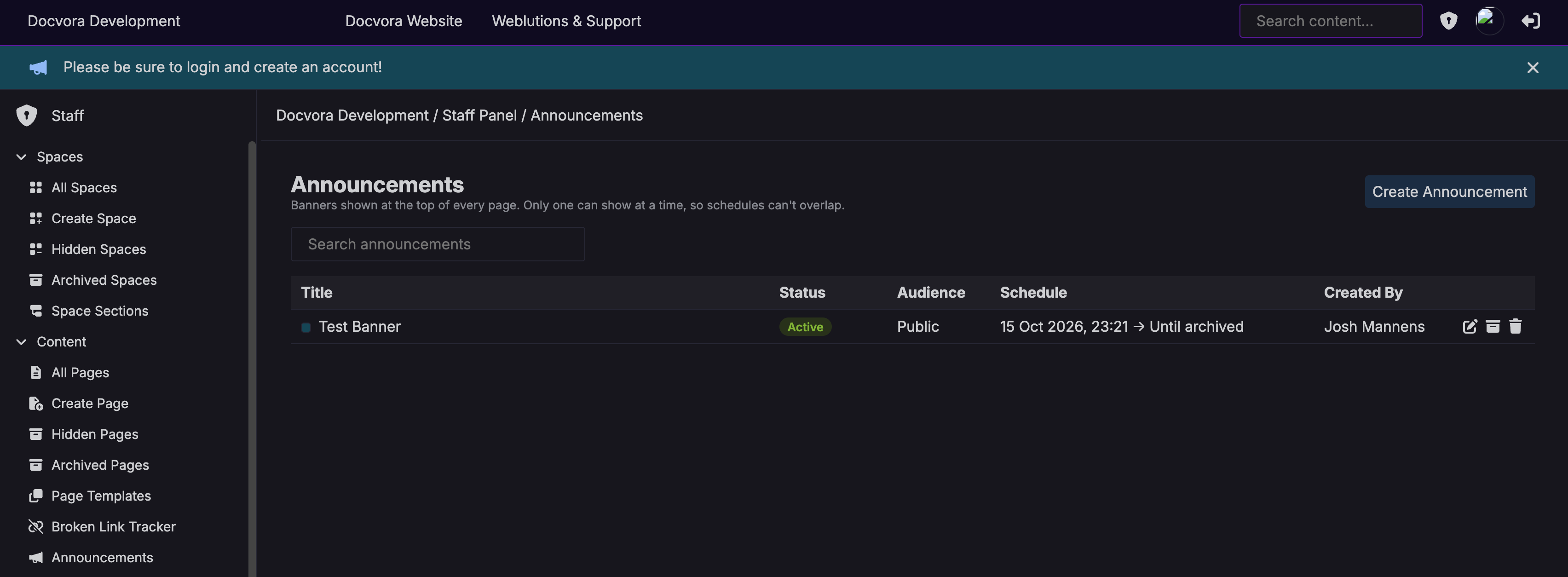
A new announcement can be created from the staff area under Announcements, using Create Announcement.
Each announcement includes:
Title
Message
Colour
Dismissible option
Target audience
Schedule
The title and message are required. The title only appears in the staff area, where it identifies the announcement. It is not shown on the banner.
A preview of the banner updates as the announcement is edited.
Banner message
The message is plain text and can be up to 4,000 characters. Line breaks are kept.
Links can be added with the Add link button, or written as [link text](https://example.com). A link can point to:
A website starting with
https://orhttp://. These links open in a new tab.An email address, using
mailto:A page on the same Docvora site, such as
/spaces/getting-started
Colours
Banners can be gray, blue, green, yellow, pink or purple.
These are the editor's highlight colours, so any changes made under Writing Colors also apply to announcement banners.
Target audience
Each announcement is shown to one of two audiences:
Public: everyone visiting the site, including readers who aren't signed in
Private: signed-in accounts only
Dismissible banners
When an announcement is dismissible, readers can close the banner with the × button.
The reader's browser remembers which announcements were dismissed, so this also works for readers who aren't signed in. The banner shows again in a different browser or device, or after browser data is cleared.
Editing an announcement does not show it again to readers who already dismissed it. To make sure everyone sees an important update, create a new announcement.
Scheduling
An announcement can run straight away or for a set period.
Without a start date, the announcement goes live as soon as it is saved.
Without an end date, the announcement stays live until it is archived.
A scheduled start date also needs an end date.
Start and end times are entered in a chosen time zone, which defaults to the browser's time zone. If no time is entered, the start time is 00:00 and the end time is 23:59.
Scheduled announcements start and end automatically at the chosen times.
One banner at a time
Only one banner shows at a time, so announcement schedules can't overlap.
While a schedule is being edited, Docvora checks it against every active and scheduled announcement and lists any that conflict. The announcement can't be saved until the schedule is changed or the conflicting announcement is archived.
Managing announcements
The Announcements list in the staff area shows each announcement's status, audience, schedule and creator. The statuses are:
Active: showing on the site now
Scheduled: set to start at a future date
Archived: archived manually, or past its end date
Archiving an announcement removes the banner from the site but keeps the announcement. To publish it again, open it and save it. If its end date has passed, give it a new end date first.
Deleting an announcement removes it permanently. A confirmation window appears before the deletion goes ahead.
Announcement permissions
Creating, editing, archiving and deleting announcements requires the Settings Edit permission.
On Enterprise plans, changes to announcements are recorded in the Audit Log.