Home Page Layouts
Home Page Layouts control what appears on the Docvora home page, in what order and in which style. A layout can start from a ready-made preset, then blocks can be added, removed, reordered and restyled until the page suits the site. Changes are saved as a draft and can be previewed before readers see them. Home Page Layouts are available on Pro and Enterprise plans and require the Edit Settings staff permission. Opening the editor Navigate to Staff Panel > Settings > Home Page Layout. The status beside the page title shows whether the home page is Live or has an unpublished Draft. The line underneath shows when the layout was last saved or published, and by whom. Saving, previewing and publishing Nothing changed in the editor affects the live home page until it's published. Save draft: saves the changes as a draft. The live home page stays as it is. Preview: saves the draft and opens the real home page in a new tab, showing the draft. Publish: makes the layout in the editor live for everyone. Discard draft: throws away the unpublished draft. The live home page stays as it is. Previewing The preview shows the draft with a bar across the top that only staff can see. From the bar, staff can: switch between As you and As a guest, to check what signed-in readers and visitors who aren't signed in will see go Back to editor Publish the draft straight from the preview In a preview, blocks with nothing to show yet appear as dashed placeholders explaining why. On the live home page, empty blocks are left out. There is one draft for the whole site. Everyone with access to the editor works on the same draft. Docvora asks before leaving the editor with unsaved changes. Starting from a preset Presets are complete layouts to use as a starting point. Choose one under Start from a preset, then confirm. Classic: the original Docvora home page, with a centred title, space tiles, then recently viewed and popular pages. Help Center: for customer support sites. A banner with a large search box, popular searches, quick links, space cards, popular and recently updated pages side by side, and an FAQ. Portal: for internal knowledge bases. Left aligned, with a stats line, featured pages, and spaces next to recent changes. Minimal: for small sites. A narrow page with a title, search box, popular searches, a list of spaces and the top pages. Applying a preset replaces the blocks, but keeps anything already written or chosen: hero title, subtitle and buttons quick links, featured pages, chosen space sections and text FAQ questions and call to action content added and hidden popular search terms If the new preset has no place for a block that's been filled in, that block is kept at the bottom of the list, switched off, so it can be turned back on. To go back to the original Docvora home page at any time, apply the Classic preset and publish. Page settings These settings apply to the whole home page. Width: Full width uses the whole window. Contained keeps content to a comfortable reading width. Narrow suits short, simple pages. Headings: Centered or Left aligned. This also sets whether rows of cards, tiles and links start in the middle or on the left. Working with blocks Each block is a card in the Blocks list. Selecting a block's name opens its settings. Add a block: select Add block and pick a type. Some blocks can only be used once per page, and are greyed out in the menu once added. Reorder: drag a block by its handle, or use the up and down arrows. Show or hide: use the switch to take a block off the page without losing its settings. Remove: use the bin icon. Docvora asks first if the block has content. Every block has these settings: Style: how the block looks. Each block type has its own styles, listed below. Heading: the title shown above the block. Leave it blank to use the block's default heading, if it has one. Shown to: Everyone, Signed-in members or Guests only (visitors who aren't signed in). Width: Full width or Half width. Two half-width blocks in a row sit side by side on larger screens and stack on phones. The hero is always full width. Blocks only ever show spaces and pages the visitor is allowed to open. Restricted content never appears for people without access. Block reference Hero The top of the page: the site title, a subtitle, an optional search box and up to two buttons. One per page. Styles: Centered, Left aligned, Banner (a panel in the brand colours) Title: leave blank to use the site name. Subtitle: leave blank to use the Short Description from Docvora Settings. Show a search box: a large search box that opens site search, the same as pressing Ctrl K (⌘K on a Mac). Buttons: each needs a label and a link, and can be Primary or Secondary. Spaces The spaces the visitor can open. This block can be added more than once, for example with "Start here" spaces as tiles near the top and developer spaces as a list further down. Styles: Tiles, Cards (with descriptions), List Show: All spaces, or Chosen sections to show only the ticked space sections. Spaces not in a section can be ticked too. Sections appear in the order set under Space Sections. Group by space section: shows section names above their spaces. Turn it off to list the spaces together. If Chosen sections is selected but nothing is ticked, the block stays hidden. Recently viewed Pages the visitor opened lately. Only shown to signed-in members, once they've viewed a page. One per page. Styles: Cards, List Pages shown: 3 to 12 Popular pages The most viewed pages. One per page. Styles: Cards, List Pages shown: 3 to 12 Recently updated The newest and most recently edited pages, with when they changed. One per page. Styles: Cards, List Pages shown: 3 to 12 Featured pages Pages chosen by hand, such as a getting started guide. Search for pages by name or space and add up to 12, in any order. This block can be added more than once. Styles: Cards (with a short excerpt), List Pages that are later hidden, archived or deleted are skipped automatically and marked in the editor. Pinned pages Pages pinned in their space, most viewed first. No setup is needed: turn on Pin Page when editing a page and it appears here. One per page. Styles: Cards, List Pages shown: 3 to 12 Popular searches What visitors search for most, shown as links. Each link opens the search results for that term. One per page. Styles: Chips, or Inline (a single line, which works well directly under the hero) Searches from: the last 7, 30 or 90 days Terms shown: 4 to 12 Your terms: terms added by staff, such as "reset password". They always show first. Searched lately: the terms that would currently show, with how often each was searched. Select Hide to keep a term off the page. Hidden terms are listed underneath, where they can be shown again. Because this block shows what visitors typed, Docvora only shows a search term when: at least 3 different visitors searched it it found results it wasn't searched by staff it doesn't look like an email address, a link or a long number such as an order or phone number it's 40 characters or shorter Visitors' searches only appear when Log searches is turned on under Docvora Settings > Policies. Otherwise, the block only shows terms added by staff. Quick links Cards with an icon, title, short description and link, such as Contact support or System status. Up to 12 links per block, and the block can be added more than once. Styles: Cards, Tiles (icon and title only) Links without a title aren't saved. FAQ Questions with answers. The block can be added more than once, with up to 20 questions in each. Styles: Accordion (answers open when a question is selected), Always open Default heading: Frequently Asked Questions Answers are written in Markdown. Questions without an answer aren't shown, so they can be drafted first. FAQs that guests can see are also marked up so search engines can read them as questions and answers. Call to action A wide banner with an optional icon, a title, short text and up to two buttons, such as "Still stuck? Contact support". The block can be added more than once. Styles: Banner (in the brand colours), Subtle The block only shows once it has a title. Stats A summary of the site, such as "6 spaces · 120 pages · Updated today". One per page. Styles: Inline (a single line), Tiles Show: number of spaces, number of pages and last updated. Each can be turned off. Counts only include the spaces and pages each visitor can open, so restricted content isn't revealed through the numbers. Text Text written in Markdown, up to 4,000 characters. The block can be added more than once. Styles: Left aligned, Centered Links in buttons and quick links Buttons and quick links accept: a web address, such as https://status.example.com a page on the site, such as /spaces/getting-started an anchor, such as #faq an email link, such as mailto:help@example.com Web addresses open in a new tab. Anything else, including javascript: links, isn't saved. The editor outlines a link in red when it won't be accepted. Writing in Markdown Text blocks and FAQ answers use Markdown: **bold** for bold *italic* for italic [Contact us](mailto:help@example.com) for a link - item at the start of a line for a bulleted list 1. item at the start of a line for a numbered list ## Heading at the start of a line for a heading A new line in the text starts a new line on the page. HTML isn't allowed and shows as plain text. Limits Blocks on the home page: 20 Buttons on a hero or call to action: 2 Quick links, featured pages or added search terms per block: 12 FAQ questions per block: 20 Pages shown in a page list: 3 to 12 Popular search terms shown: 4 to 12 Text block length: 4,000 characters FAQ answer length: 2,000 characters Audit Log On Enterprise plans, each time a layout is published an entry called Published home page layout is added to the Audit Log, showing which blocks were on the page before and after. Saving or discarding drafts isn't logged. Troubleshooting A block doesn't appear on the home page Empty blocks are left out of the live page. A Preview shows a placeholder explaining why. Common reasons include: the block is switched off Shown to excludes the current visitor, such as a block set to Guests only while signed in there's nothing the visitor can open, such as no pinned pages or no pages they have access to a Spaces block is set to Chosen sections with none ticked a call to action has no title, or an FAQ has no answered questions popular searches haven't yet reached the minimum number of different visitors The layout was published but the home page hasn't changed Check that Publish was selected, not Save draft. The status beside the page title should say Live. Home Page Layout isn't in the staff panel The Edit Settings permission is needed, and the site's plan must include Home Page Layouts. What happens if the plan no longer includes Home Page Layouts? The home page goes back to the original Classic layout. The saved layout is kept and returns if the feature is turned back on.
Home Page Layouts control what appears on the Docvora home page, in what order and in which style. A layout can start from a ready-made preset, then blocks can be added, removed, reordered and restyled until the page suits the site.
Changes are saved as a draft and can be previewed before readers see them.
Home Page Layouts are available on Pro and Enterprise plans and require the Edit Settings staff permission.
Opening the editor
Navigate to Staff Panel > Settings > Home Page Layout.
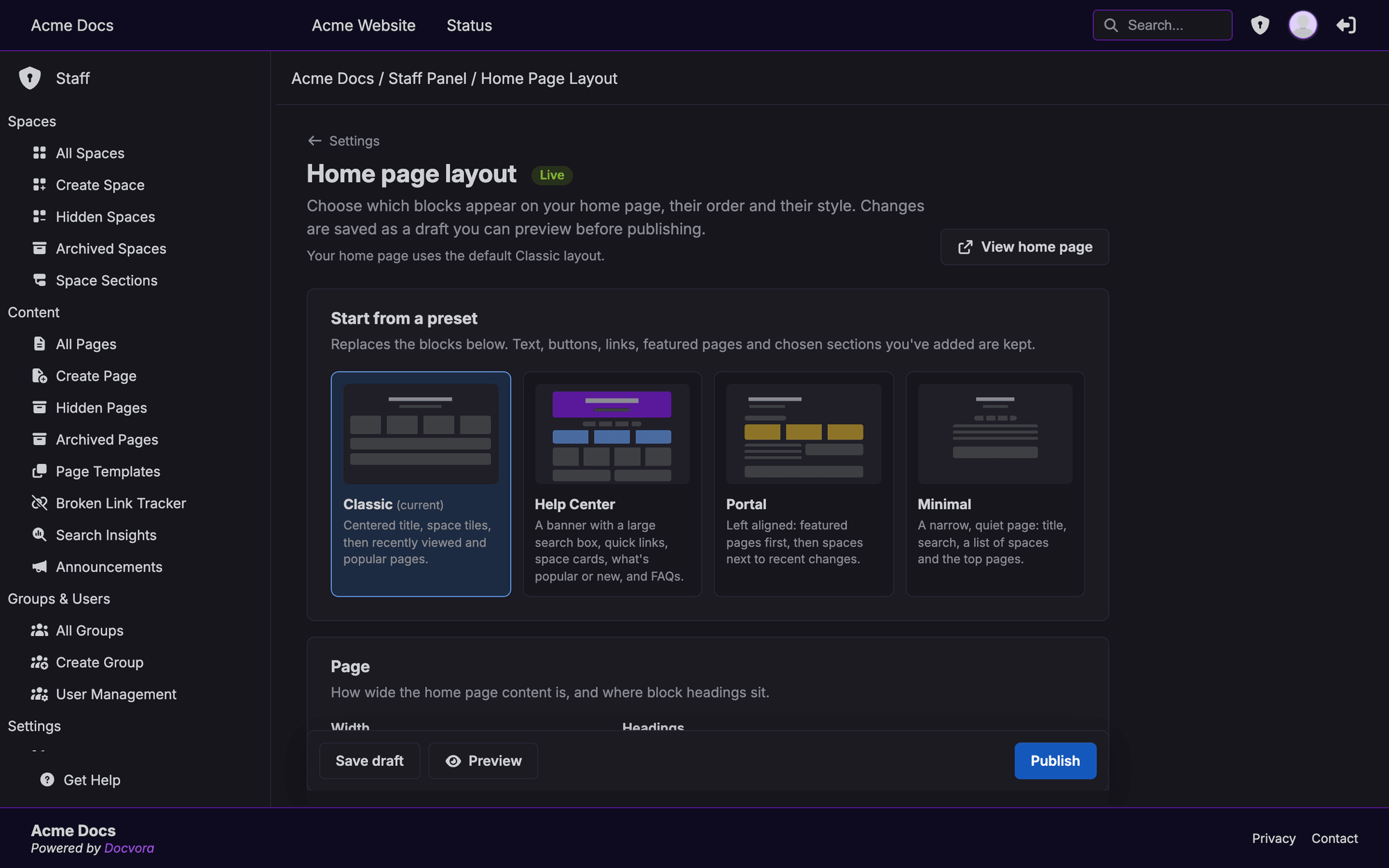
The status beside the page title shows whether the home page is Live or has an unpublished Draft. The line underneath shows when the layout was last saved or published, and by whom.
Saving, previewing and publishing
Nothing changed in the editor affects the live home page until it's published.
Save draft: saves the changes as a draft. The live home page stays as it is.
Preview: saves the draft and opens the real home page in a new tab, showing the draft.
Publish: makes the layout in the editor live for everyone.
Discard draft: throws away the unpublished draft. The live home page stays as it is.
Previewing
The preview shows the draft with a bar across the top that only staff can see. From the bar, staff can:
switch between As you and As a guest, to check what signed-in readers and visitors who aren't signed in will see
go Back to editor
Publish the draft straight from the preview
In a preview, blocks with nothing to show yet appear as dashed placeholders explaining why. On the live home page, empty blocks are left out.
There is one draft for the whole site. Everyone with access to the editor works on the same draft.
Docvora asks before leaving the editor with unsaved changes.
Starting from a preset
Presets are complete layouts to use as a starting point. Choose one under Start from a preset, then confirm.
Classic: the original Docvora home page, with a centred title, space tiles, then recently viewed and popular pages.
Help Center: for customer support sites. A banner with a large search box, popular searches, quick links, space cards, popular and recently updated pages side by side, and an FAQ.
Portal: for internal knowledge bases. Left aligned, with a stats line, featured pages, and spaces next to recent changes.
Minimal: for small sites. A narrow page with a title, search box, popular searches, a list of spaces and the top pages.
Applying a preset replaces the blocks, but keeps anything already written or chosen:
hero title, subtitle and buttons
quick links, featured pages, chosen space sections and text
FAQ questions and call to action content
added and hidden popular search terms
If the new preset has no place for a block that's been filled in, that block is kept at the bottom of the list, switched off, so it can be turned back on.
To go back to the original Docvora home page at any time, apply the Classic preset and publish.
Page settings
These settings apply to the whole home page.
Width: Full width uses the whole window. Contained keeps content to a comfortable reading width. Narrow suits short, simple pages.
Headings: Centered or Left aligned. This also sets whether rows of cards, tiles and links start in the middle or on the left.
Working with blocks
Each block is a card in the Blocks list. Selecting a block's name opens its settings.
Add a block: select Add block and pick a type. Some blocks can only be used once per page, and are greyed out in the menu once added.
Reorder: drag a block by its handle, or use the up and down arrows.
Show or hide: use the switch to take a block off the page without losing its settings.
Remove: use the bin icon. Docvora asks first if the block has content.
Every block has these settings:
Style: how the block looks. Each block type has its own styles, listed below.
Heading: the title shown above the block. Leave it blank to use the block's default heading, if it has one.
Shown to: Everyone, Signed-in members or Guests only (visitors who aren't signed in).
Width: Full width or Half width. Two half-width blocks in a row sit side by side on larger screens and stack on phones. The hero is always full width.
Blocks only ever show spaces and pages the visitor is allowed to open. Restricted content never appears for people without access.
Block reference
Hero
The top of the page: the site title, a subtitle, an optional search box and up to two buttons. One per page.
Styles: Centered, Left aligned, Banner (a panel in the brand colours)
Title: leave blank to use the site name.
Subtitle: leave blank to use the Short Description from Docvora Settings.
Show a search box: a large search box that opens site search, the same as pressing Ctrl K (⌘K on a Mac).
Buttons: each needs a label and a link, and can be Primary or Secondary.
Spaces
The spaces the visitor can open. This block can be added more than once, for example with "Start here" spaces as tiles near the top and developer spaces as a list further down.
Styles: Tiles, Cards (with descriptions), List
Show: All spaces, or Chosen sections to show only the ticked space sections. Spaces not in a section can be ticked too. Sections appear in the order set under Space Sections.
Group by space section: shows section names above their spaces. Turn it off to list the spaces together.
If Chosen sections is selected but nothing is ticked, the block stays hidden.
Recently viewed
Pages the visitor opened lately. Only shown to signed-in members, once they've viewed a page. One per page.
Styles: Cards, List
Pages shown: 3 to 12
Popular pages
The most viewed pages. One per page.
Styles: Cards, List
Pages shown: 3 to 12
Recently updated
The newest and most recently edited pages, with when they changed. One per page.
Styles: Cards, List
Pages shown: 3 to 12
Featured pages
Pages chosen by hand, such as a getting started guide. Search for pages by name or space and add up to 12, in any order. This block can be added more than once.
Styles: Cards (with a short excerpt), List
Pages that are later hidden, archived or deleted are skipped automatically and marked in the editor.
Pinned pages
Pages pinned in their space, most viewed first. No setup is needed: turn on Pin Page when editing a page and it appears here. One per page.
Styles: Cards, List
Pages shown: 3 to 12
Popular searches
What visitors search for most, shown as links. Each link opens the search results for that term. One per page.
Styles: Chips, or Inline (a single line, which works well directly under the hero)
Searches from: the last 7, 30 or 90 days
Terms shown: 4 to 12
Your terms: terms added by staff, such as "reset password". They always show first.
Searched lately: the terms that would currently show, with how often each was searched. Select Hide to keep a term off the page. Hidden terms are listed underneath, where they can be shown again.
Because this block shows what visitors typed, Docvora only shows a search term when:
at least 3 different visitors searched it
it found results
it wasn't searched by staff
it doesn't look like an email address, a link or a long number such as an order or phone number
it's 40 characters or shorter
Visitors' searches only appear when Log searches is turned on under Docvora Settings > Policies. Otherwise, the block only shows terms added by staff.
Quick links
Cards with an icon, title, short description and link, such as Contact support or System status. Up to 12 links per block, and the block can be added more than once.
Styles: Cards, Tiles (icon and title only)
Links without a title aren't saved.
FAQ
Questions with answers. The block can be added more than once, with up to 20 questions in each.
Styles: Accordion (answers open when a question is selected), Always open
Default heading: Frequently Asked Questions
Answers are written in Markdown. Questions without an answer aren't shown, so they can be drafted first.
FAQs that guests can see are also marked up so search engines can read them as questions and answers.
Call to action
A wide banner with an optional icon, a title, short text and up to two buttons, such as "Still stuck? Contact support". The block can be added more than once.
Styles: Banner (in the brand colours), Subtle
The block only shows once it has a title.
Stats
A summary of the site, such as "6 spaces · 120 pages · Updated today". One per page.
Styles: Inline (a single line), Tiles
Show: number of spaces, number of pages and last updated. Each can be turned off.
Counts only include the spaces and pages each visitor can open, so restricted content isn't revealed through the numbers.
Text
Text written in Markdown, up to 4,000 characters. The block can be added more than once.
Styles: Left aligned, Centered
Links in buttons and quick links
Buttons and quick links accept:
a web address, such as
https://status.example.coma page on the site, such as
/spaces/getting-startedan anchor, such as
#faqan email link, such as
mailto:help@example.com
Web addresses open in a new tab. Anything else, including javascript: links, isn't saved. The editor outlines a link in red when it won't be accepted.
Writing in Markdown
Text blocks and FAQ answers use Markdown:
**bold**for bold*italic*for italic[Contact us](mailto:help@example.com)for a link- itemat the start of a line for a bulleted list1. itemat the start of a line for a numbered list## Headingat the start of a line for a heading
A new line in the text starts a new line on the page. HTML isn't allowed and shows as plain text.
Limits
Blocks on the home page: 20
Buttons on a hero or call to action: 2
Quick links, featured pages or added search terms per block: 12
FAQ questions per block: 20
Pages shown in a page list: 3 to 12
Popular search terms shown: 4 to 12
Text block length: 4,000 characters
FAQ answer length: 2,000 characters
Audit Log
On Enterprise plans, each time a layout is published an entry called Published home page layout is added to the Audit Log, showing which blocks were on the page before and after. Saving or discarding drafts isn't logged.
Troubleshooting
A block doesn't appear on the home page
Empty blocks are left out of the live page. A Preview shows a placeholder explaining why. Common reasons include:
the block is switched off
Shown to excludes the current visitor, such as a block set to Guests only while signed in
there's nothing the visitor can open, such as no pinned pages or no pages they have access to
a Spaces block is set to Chosen sections with none ticked
a call to action has no title, or an FAQ has no answered questions
popular searches haven't yet reached the minimum number of different visitors
The layout was published but the home page hasn't changed
Check that Publish was selected, not Save draft. The status beside the page title should say Live.
Home Page Layout isn't in the staff panel
The Edit Settings permission is needed, and the site's plan must include Home Page Layouts.
What happens if the plan no longer includes Home Page Layouts?
The home page goes back to the original Classic layout. The saved layout is kept and returns if the feature is turned back on.