Site Settings
Docvora Settings holds the details and policies that apply to the whole site, such as its name, logo, header and footer links, and which features are switched on for readers. Docvora Settings is available on all Docvora plans and requires the Edit Settings staff permission. Some policies depend on the plan, as noted below. Navigate to Staff Panel > Settings > Docvora Settings to open the settings. Information Domain: the site's address. The domain is managed from the Docvora website rather than from the staff panel. See Custom Domains for using a domain of your own. Site Name: the name shown in the header, browser tabs, search results and emails. Short Description: a plain text summary of the site, shown on the home page and used by search engines. Up to 500 characters. Site-wide banners are created under Announcements. See Announcements for details. Policies Policies are switches that turn site-wide behaviour on or off. Select Save after changing them. Require two-factor authentication (2FA): email and password accounts must set up 2FA before they can use the site. Available on Enterprise plans. See Requiring Two-Factor Authentication. Allow search engines: lets search engines index public spaces and pages. Available on Pro and Enterprise plans. See Search Engine Visibility. Log searches: records what readers search for, anonymously, for Search Insights. Searches are kept for 12 months. Available on Pro and Enterprise plans. See Search Insights. Show Branding: shows "Powered by Docvora" in the footer. Turning it off removes the branding. Available on Enterprise plans. Allow page exports: lets anyone who can view a page or space download it as Markdown, PDF or Word. See Exporting Pages & Spaces. Login Methods Login Methods controls how readers and staff sign in, with email and password (Local Accounts) or with Discord, GitHub, Google or Microsoft. See Login Methods for turning these on and off, and the Single Sign-On guides for setting up each provider. Global Content Global Content changes the parts of the site that appear on every page. Header Settings Adds links to the top of every page, such as a link back to the main website or a status page. Each link has a Name and a Link. Select Add Header Button to add a link, or Remove to take one away. Footer Settings Sets the footer's Left Title and the links shown along the bottom of every page. Page & Space Sidebar Settings Sets the button at the bottom of the sidebar on every space and page, such as "Get Help". The button has its own Text, Link and Icon. Logo & Favicon Uploads the logo shown in the header, in link previews and as the browser tab icon. A square image of 100 x 100 pixels is recommended. Colours Brand and content colours are changed from Staff Panel > Settings > Branding Colors and Writing Colors. See Branding & Writing Colours for details.
Docvora Settings holds the details and policies that apply to the whole site, such as its name, logo, header and footer links, and which features are switched on for readers.
Docvora Settings is available on all Docvora plans and requires the Edit Settings staff permission. Some policies depend on the plan, as noted below.
Navigate to Staff Panel > Settings > Docvora Settings to open the settings.
Information
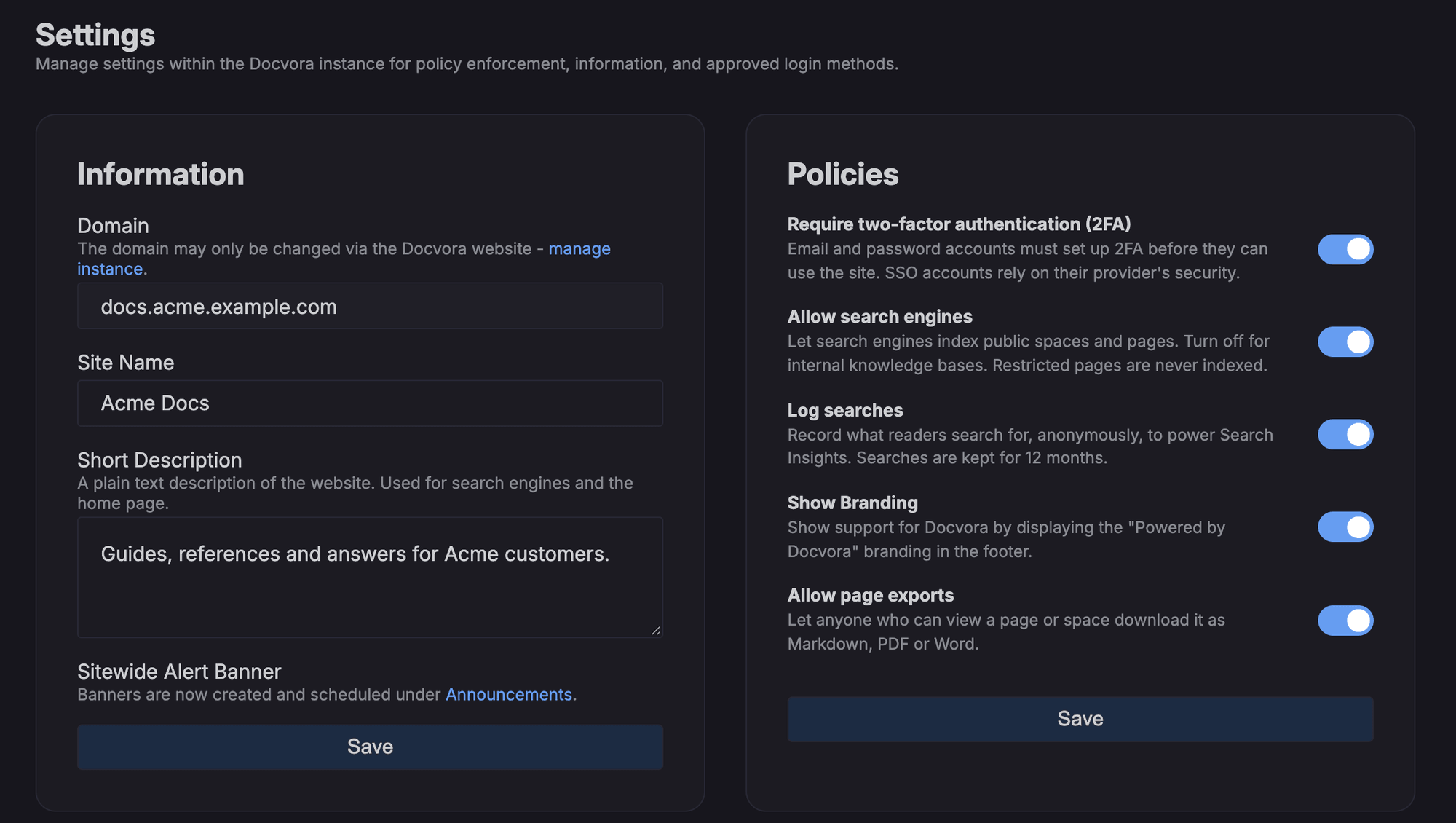
Domain: the site's address. The domain is managed from the Docvora website rather than from the staff panel. See Custom Domains for using a domain of your own.
Site Name: the name shown in the header, browser tabs, search results and emails.
Short Description: a plain text summary of the site, shown on the home page and used by search engines. Up to 500 characters.
Site-wide banners are created under Announcements. See Announcements for details.
Policies
Policies are switches that turn site-wide behaviour on or off. Select Save after changing them.
Require two-factor authentication (2FA): email and password accounts must set up 2FA before they can use the site. Available on Enterprise plans. See Requiring Two-Factor Authentication.
Allow search engines: lets search engines index public spaces and pages. Available on Pro and Enterprise plans. See Search Engine Visibility.
Log searches: records what readers search for, anonymously, for Search Insights. Searches are kept for 12 months. Available on Pro and Enterprise plans. See Search Insights.
Show Branding: shows "Powered by Docvora" in the footer. Turning it off removes the branding. Available on Enterprise plans.
Allow page exports: lets anyone who can view a page or space download it as Markdown, PDF or Word. See Exporting Pages & Spaces.
Login Methods
Login Methods controls how readers and staff sign in, with email and password (Local Accounts) or with Discord, GitHub, Google or Microsoft.
See Login Methods for turning these on and off, and the Single Sign-On guides for setting up each provider.
Global Content
Global Content changes the parts of the site that appear on every page.
Header Settings
Adds links to the top of every page, such as a link back to the main website or a status page. Each link has a Name and a Link. Select Add Header Button to add a link, or Remove to take one away.
Footer Settings
Sets the footer's Left Title and the links shown along the bottom of every page.
Page & Space Sidebar Settings
Sets the button at the bottom of the sidebar on every space and page, such as "Get Help". The button has its own Text, Link and Icon.
Logo & Favicon
Uploads the logo shown in the header, in link previews and as the browser tab icon. A square image of 100 x 100 pixels is recommended.
Colours
Brand and content colours are changed from Staff Panel > Settings > Branding Colors and Writing Colors. See Branding & Writing Colours for details.