Import Options & Progress
Docvora's Migration Tools bring existing documentation across from Confluence, GitBook, Notion and FaxDocs. Each platform connects in its own way, covered in its migration guide. After connecting, every migration works the same way: choose what to import, set the import options, then follow the import's progress. Migration Tools can be used by the Master Administrator and Administrators, from Staff Panel > Integrations > Migration Tools. The migration steps Every import has three steps on one page: Connect: enter the details for the platform, such as a site address or access token, then select the button to find content. Each migration guide explains what's needed. Choose: tick the spaces, pages or categories to import, and choose where each one goes. Options: set how the import behaves, then select Start import. Tokens and secrets entered to connect are only used for that import and aren't saved. Choosing what to import Once connected, Docvora lists the content the account can see. Tick each item to import, or tick the box at the top of the list to select everything. Each item has an Import into option: A new space: creates a new Docvora space for the item. An existing space: adds the item's pages to a space that's already on the site. How content is arranged depends on the platform: Confluence: each space becomes a Docvora space, and the space's home page becomes the new space's own content. GitBook: each space becomes a Docvora space, and groups in the table of contents become parent pages. Notion: each top-level page becomes a space. Its content becomes the space's own content, and its sub-pages and database rows become pages. FaxDocs: each category becomes a space with its articles as pages. Sub-category articles become parent pages with their articles underneath. Import options Import as hidden: imported spaces and pages are left out of navigation and search, so they can be checked before readers see them. They can all be published at once from the import's page when ready. This option is on by default. Images and attachments: downloads the images and files used on each page. Files over the site's upload limit are skipped. Archived pages: for Confluence, also imports pages archived in Confluence. For FaxDocs, the matching option imports deleted articles. Both are archived in Docvora. Hidden pages can still be opened by anyone with the link. Keep an import hidden only while it's being checked. Pages imported before When content is imported again, this option decides what happens to pages brought across in an earlier import: Leave them as they are: skips pages already imported. This also continues an import that stopped part way through. Update them if they changed: brings across changes made on the other platform, unless the page has since been edited in Docvora. Replace them: replaces pages with the other platform's version, even if they've been edited in Docvora. Updated pages keep their previous content in Page Version History, on plans that include it. Following an import's progress Selecting Start import opens the import's own page. The import keeps running if the page is closed, and can be found again under Recent imports on the Migration Tools page. The page shows: the import's status, such as Running, Completed or Completed with errors, and what it's doing, such as importing pages how many pages are done out of the total how many pages were created, updated, skipped or failed, and how many warnings there were What happened: anything that couldn't be brought across exactly, with the page it affects Only one import runs at a time. A second import waits until the first one finishes. After an import When an import finishes, these options are available on its page: Publish imported pages: makes every hidden space and page from the import visible at once. Delete imported content: removes every page the import created, along with any spaces it created that are left empty. While an import is running, Cancel import stops it. Pages already imported are kept, and the import can be continued later by running it again with Leave them as they are. Delete imported content also removes any edits made to imported pages since the import, and can't be undone. Pages that existed before the import, and pages added by hand, are kept. Migration guides Migrating from Confluence Migrating from GitBook Migrating from FaxDocs Migrating from Notion
Docvora's Migration Tools bring existing documentation across from Confluence, GitBook, Notion and FaxDocs. Each platform connects in its own way, covered in its migration guide. After connecting, every migration works the same way: choose what to import, set the import options, then follow the import's progress.
Migration Tools can be used by the Master Administrator and Administrators, from Staff Panel > Integrations > Migration Tools.
The migration steps
Every import has three steps on one page:
Connect: enter the details for the platform, such as a site address or access token, then select the button to find content. Each migration guide explains what's needed.
Choose: tick the spaces, pages or categories to import, and choose where each one goes.
Options: set how the import behaves, then select Start import.
Tokens and secrets entered to connect are only used for that import and aren't saved.
Choosing what to import
Once connected, Docvora lists the content the account can see. Tick each item to import, or tick the box at the top of the list to select everything.
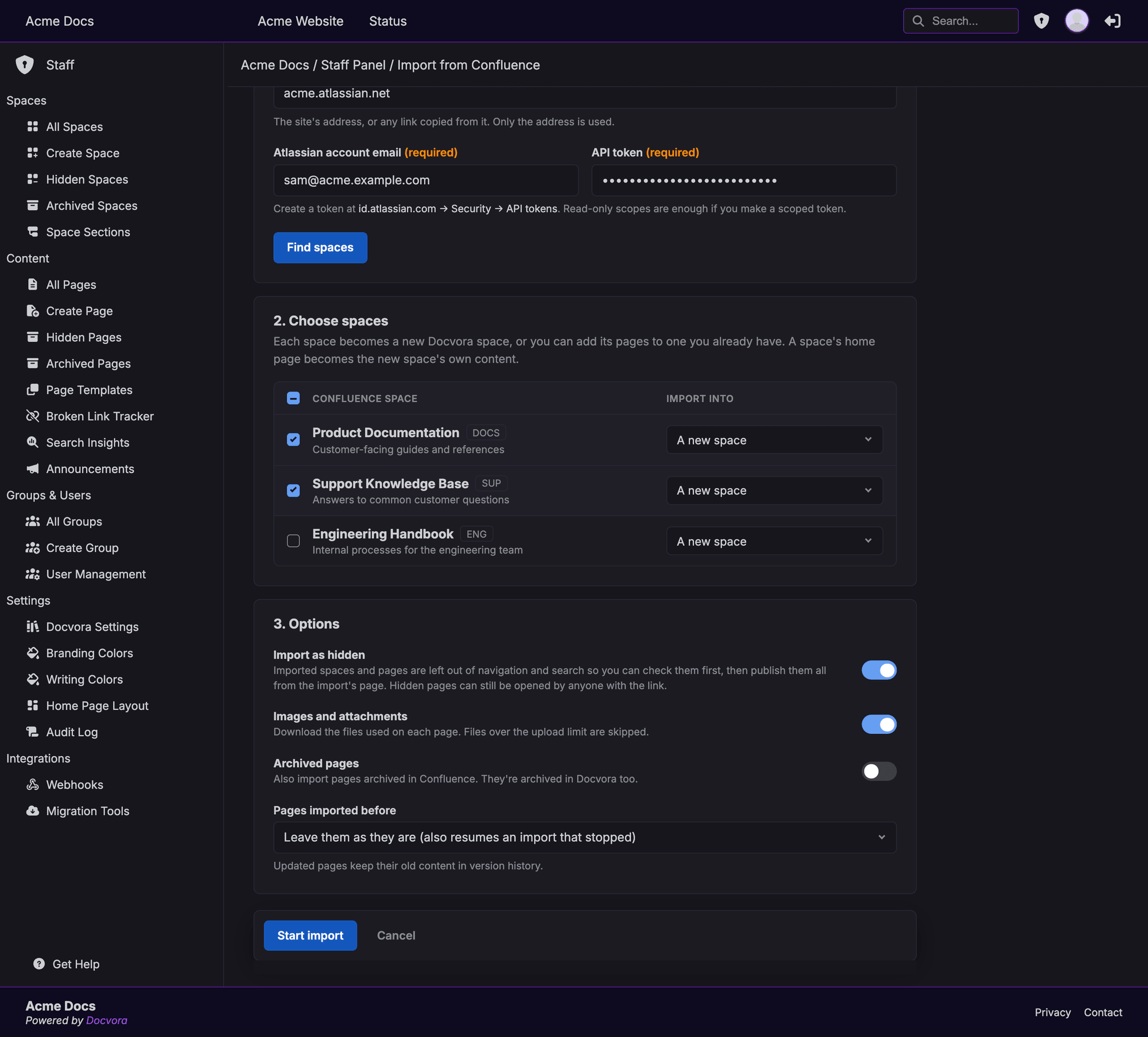
Each item has an Import into option:
A new space: creates a new Docvora space for the item.
An existing space: adds the item's pages to a space that's already on the site.
How content is arranged depends on the platform:
Confluence: each space becomes a Docvora space, and the space's home page becomes the new space's own content.
GitBook: each space becomes a Docvora space, and groups in the table of contents become parent pages.
Notion: each top-level page becomes a space. Its content becomes the space's own content, and its sub-pages and database rows become pages.
FaxDocs: each category becomes a space with its articles as pages. Sub-category articles become parent pages with their articles underneath.
Import options
Import as hidden: imported spaces and pages are left out of navigation and search, so they can be checked before readers see them. They can all be published at once from the import's page when ready. This option is on by default.
Images and attachments: downloads the images and files used on each page. Files over the site's upload limit are skipped.
Archived pages: for Confluence, also imports pages archived in Confluence. For FaxDocs, the matching option imports deleted articles. Both are archived in Docvora.
Hidden pages can still be opened by anyone with the link. Keep an import hidden only while it's being checked.
Pages imported before
When content is imported again, this option decides what happens to pages brought across in an earlier import:
Leave them as they are: skips pages already imported. This also continues an import that stopped part way through.
Update them if they changed: brings across changes made on the other platform, unless the page has since been edited in Docvora.
Replace them: replaces pages with the other platform's version, even if they've been edited in Docvora.
Updated pages keep their previous content in Page Version History, on plans that include it.
Following an import's progress
Selecting Start import opens the import's own page. The import keeps running if the page is closed, and can be found again under Recent imports on the Migration Tools page.
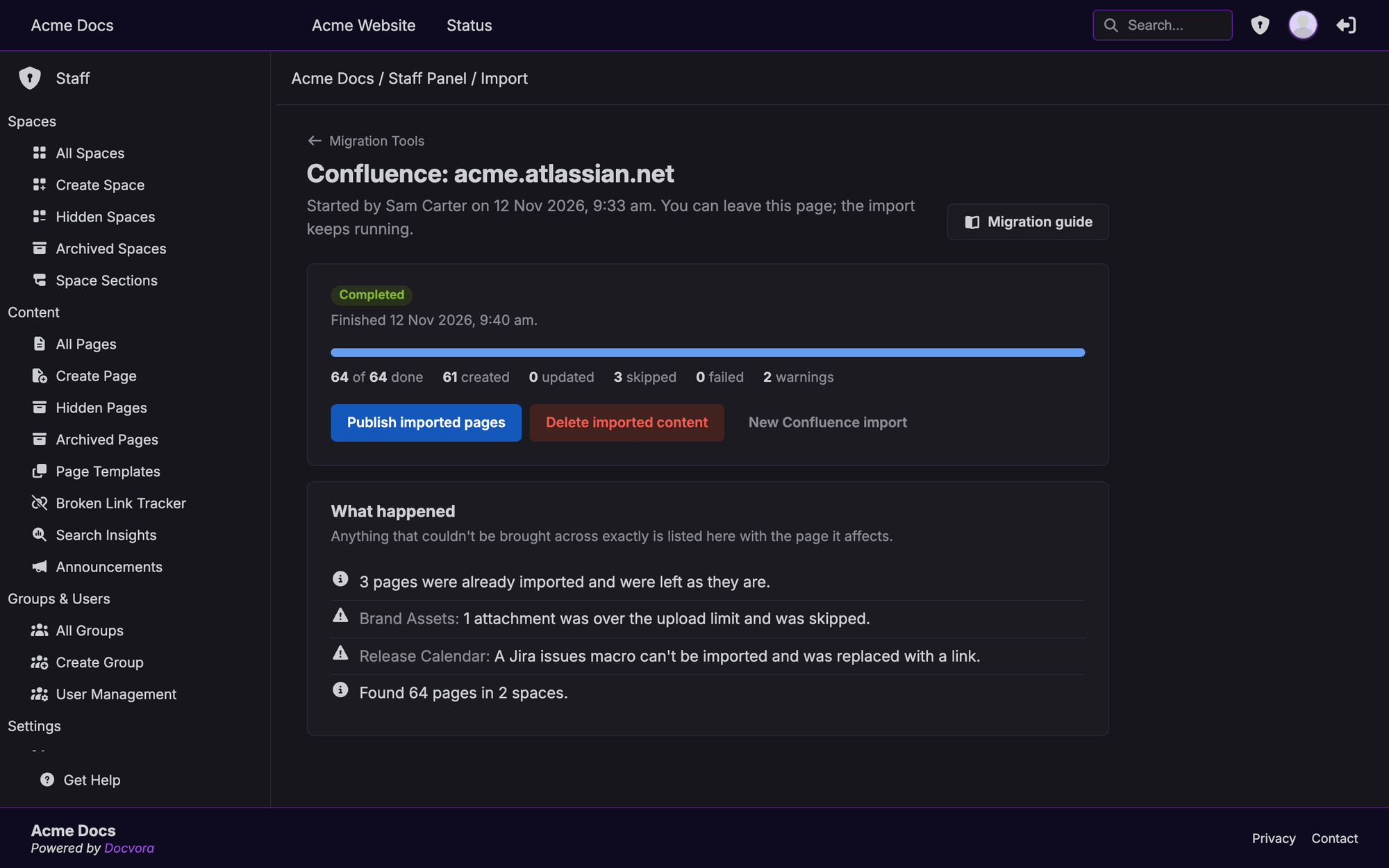
The page shows:
the import's status, such as Running, Completed or Completed with errors, and what it's doing, such as importing pages
how many pages are done out of the total
how many pages were created, updated, skipped or failed, and how many warnings there were
What happened: anything that couldn't be brought across exactly, with the page it affects
Only one import runs at a time. A second import waits until the first one finishes.
After an import
When an import finishes, these options are available on its page:
Publish imported pages: makes every hidden space and page from the import visible at once.
Delete imported content: removes every page the import created, along with any spaces it created that are left empty.
While an import is running, Cancel import stops it. Pages already imported are kept, and the import can be continued later by running it again with Leave them as they are.
Delete imported content also removes any edits made to imported pages since the import, and can't be undone. Pages that existed before the import, and pages added by hand, are kept.