Page Analytics
Page Analytics shows how often a page is read and where its readers come from, such as search engines, chat apps, share links and campaigns. Staff can use it to see which pages are being found and which links bring readers in. Page Analytics is available on all Docvora plans. Viewing a page's analytics requires the Pages View staff permission. Opening Page Analytics Open the page. Select the ⋯ button next to Share at the top of the page. Select Page analytics. The report can also be opened by adding /analytics to the end of a page's address, for example /spaces/getting-started/creating-an-account/analytics. Restricted pages only show their analytics to staff who are able to open the page. Filtering by traffic The buttons at the top of the report filter every figure on the page by where readers came from. All traffic: every tracked view. External: visits from search engines, other websites, campaigns, share links and chat apps such as Discord, Slack and Microsoft Teams. Direct & on-site: visits with no outside referrer. This includes typed or bookmarked links, links opened from desktop apps and clicks from other pages on the same site. Summary figures The row of figures at the top of the report gives a quick overview of the page. Pageviews: how many times the page was loaded. With All traffic selected, the line underneath shows what share of those views was external. Unique visitors: an estimate of how many different people viewed the page, based on IP address. Signed-in views: views from signed-in accounts, with how many were by the current account and how many different accounts viewed the page. Share clicks: how many times the page's share link was opened, and how many visitors it brought in. Last view: when the page was most recently viewed. Why the figures differ from the page's view count The view count shown on the page itself counts each reader once every six hours, and can include views from before Page Analytics began tracking. Page Analytics counts every page load, so its Pageviews figure is usually higher. Views Over 30 Days The chart shows daily views for the last 30 days, split into External and Direct & on-site. Hovering over a day shows its totals. Selecting Daily numbers below the chart shows the same figures as a table. Days follow the time zone of the browser viewing the report. Where readers come from Traffic Mix: the split between External and Direct & on-site views. Selecting either one filters the report. Top Sources: the websites and apps that sent readers, such as Google, Discord, Slack, Microsoft Teams, X, Facebook and LinkedIn. Mediums: the type of traffic, such as the medium set on a campaign link, or whether a chat app opened the link in the app itself. Recent Visits: the latest 25 visits, with the source, referrer, address used and time of each one. Campaigns Campaign Performance lists views that arrived through links tagged with UTM parameters. These are the standard tags used by most marketing and email tools: utm_source: where the link was posted, such as newsletter or discord utm_medium: the type of link, such as email or social utm_campaign: the name of the campaign, such as november-update For example: https://docs.example.com/spaces/getting-started/creating-an-account?utm_source=newsletter&utm_medium=email&utm_campaign=november-update A source set with utm_source is shown in Top Sources in place of the referring site. Share links Every page has a share link, copied with the Share button at the top of the page. Opening a share link is counted as a share click, and the visit that follows is credited to the share link. Share Link Sources: where share links were opened from. Recent Share Link Clicks: the latest 10 share link clicks, with their source, referrer and time. UTM tags can be added to the end of a share link to label where it was posted. For more on share links, see Sharing Pages. Privacy Page Analytics records the source of each visit, the referring site, the address used and the time. Signed-in views are linked to the account that made them so staff can tell their own views apart from readers' views. Unique visitors are estimated from IP addresses. Individual IP addresses are not shown in the report.
Page Analytics shows how often a page is read and where its readers come from, such as search engines, chat apps, share links and campaigns. Staff can use it to see which pages are being found and which links bring readers in.
Page Analytics is available on all Docvora plans. Viewing a page's analytics requires the Pages View staff permission.
Opening Page Analytics
Open the page.
Select the ⋯ button next to Share at the top of the page.
Select Page analytics.
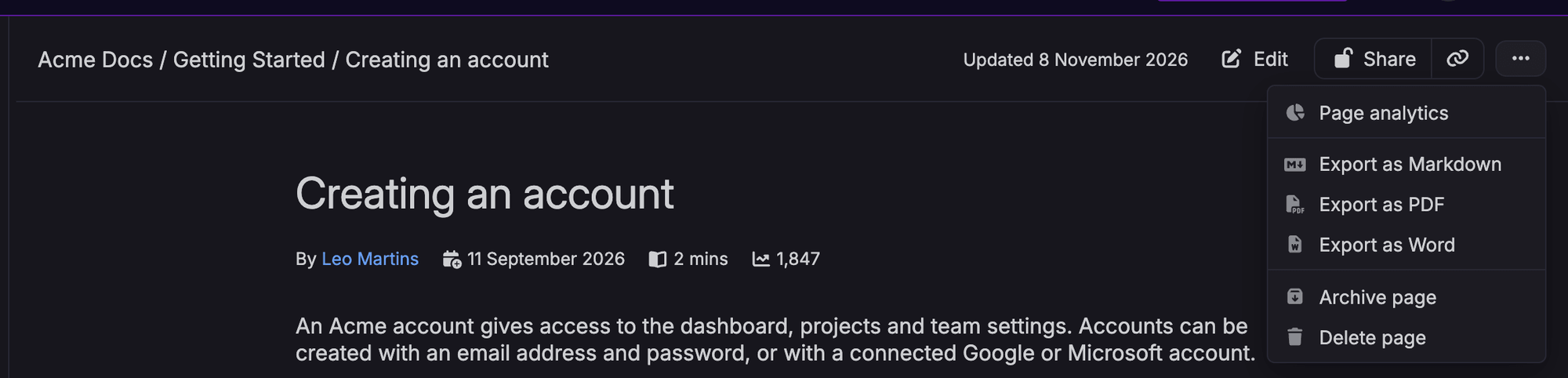
The report can also be opened by adding /analytics to the end of a page's address, for example /spaces/getting-started/creating-an-account/analytics.
Restricted pages only show their analytics to staff who are able to open the page.
Filtering by traffic
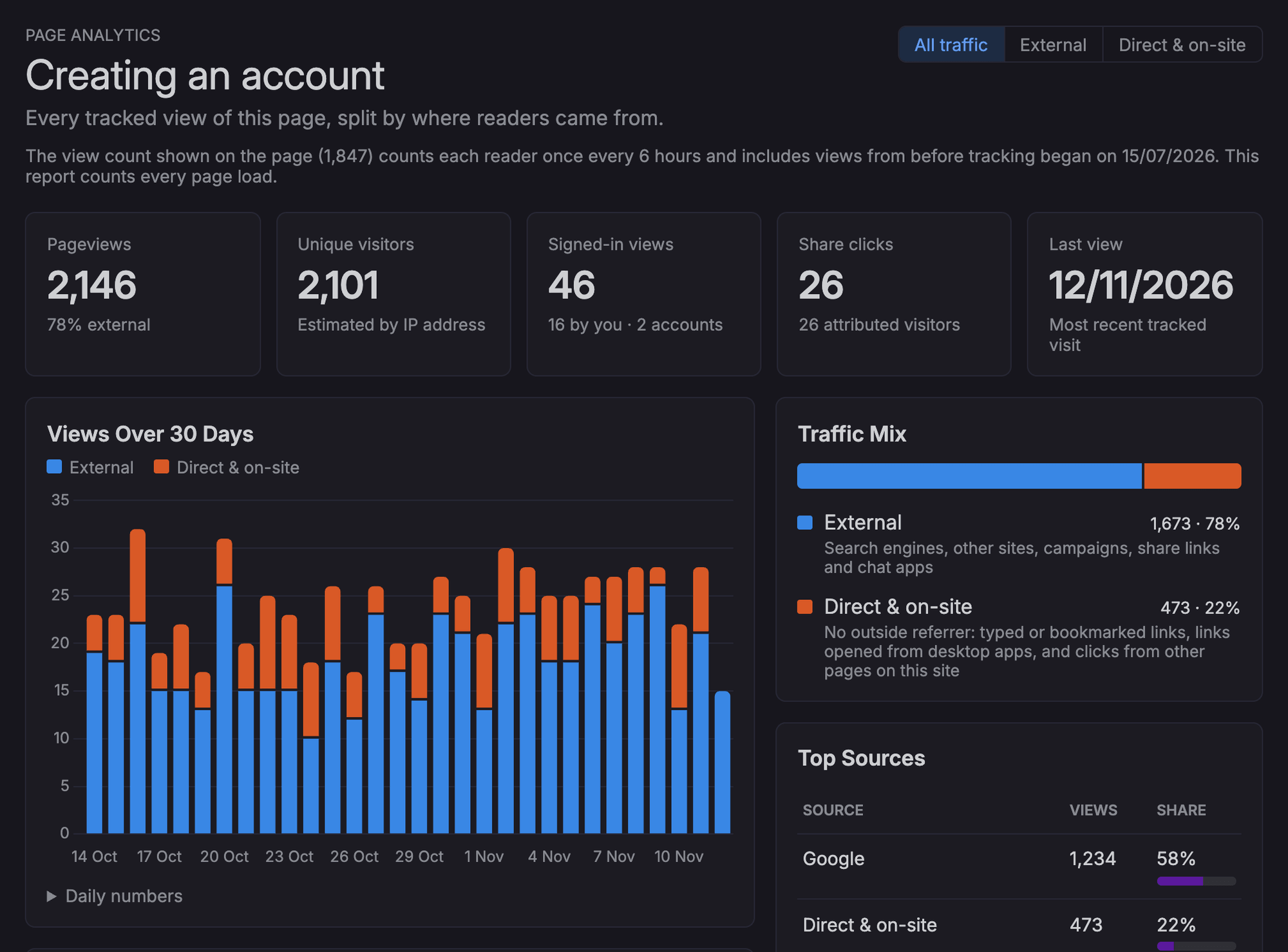
The buttons at the top of the report filter every figure on the page by where readers came from.
All traffic: every tracked view.
External: visits from search engines, other websites, campaigns, share links and chat apps such as Discord, Slack and Microsoft Teams.
Direct & on-site: visits with no outside referrer. This includes typed or bookmarked links, links opened from desktop apps and clicks from other pages on the same site.
Summary figures
The row of figures at the top of the report gives a quick overview of the page.
Pageviews: how many times the page was loaded. With All traffic selected, the line underneath shows what share of those views was external.
Unique visitors: an estimate of how many different people viewed the page, based on IP address.
Signed-in views: views from signed-in accounts, with how many were by the current account and how many different accounts viewed the page.
Share clicks: how many times the page's share link was opened, and how many visitors it brought in.
Last view: when the page was most recently viewed.
Why the figures differ from the page's view count
The view count shown on the page itself counts each reader once every six hours, and can include views from before Page Analytics began tracking. Page Analytics counts every page load, so its Pageviews figure is usually higher.
Views Over 30 Days
The chart shows daily views for the last 30 days, split into External and Direct & on-site. Hovering over a day shows its totals.
Selecting Daily numbers below the chart shows the same figures as a table. Days follow the time zone of the browser viewing the report.
Where readers come from
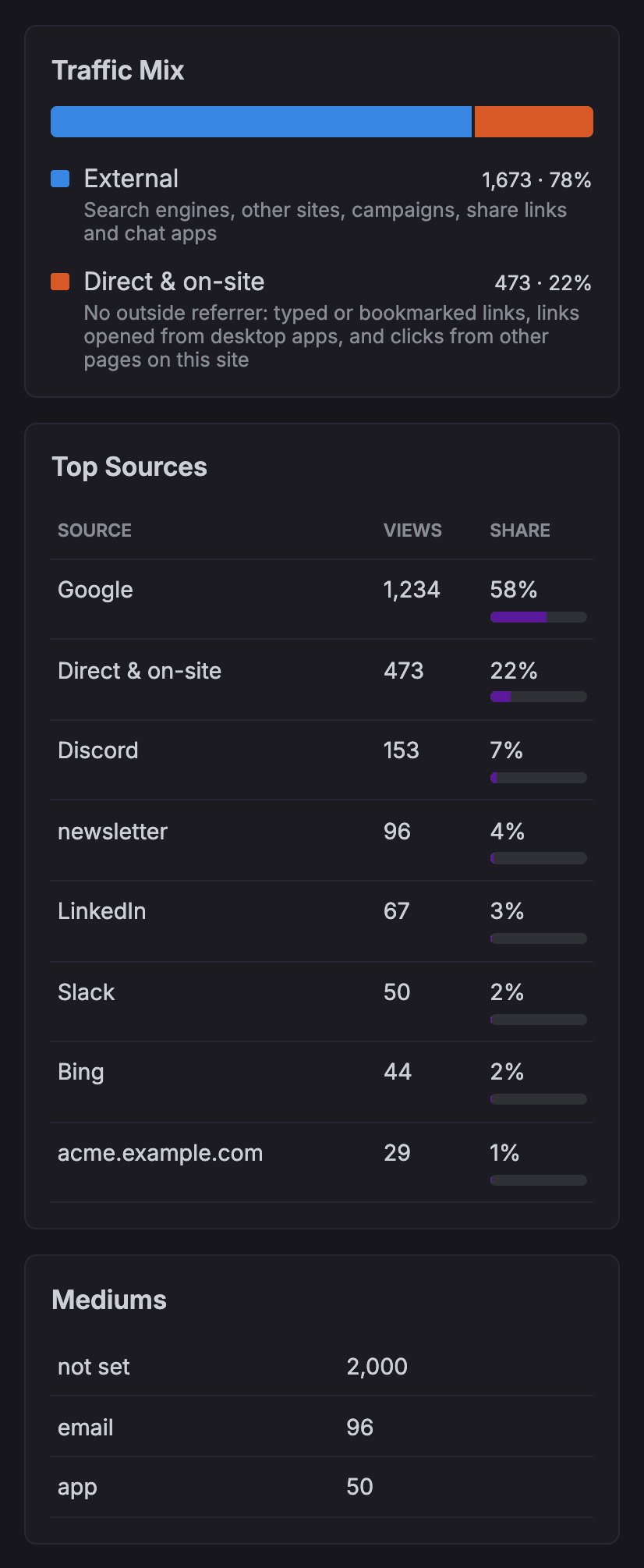
Traffic Mix: the split between External and Direct & on-site views. Selecting either one filters the report.
Top Sources: the websites and apps that sent readers, such as Google, Discord, Slack, Microsoft Teams, X, Facebook and LinkedIn.
Mediums: the type of traffic, such as the medium set on a campaign link, or whether a chat app opened the link in the app itself.
Recent Visits: the latest 25 visits, with the source, referrer, address used and time of each one.
Campaigns
Campaign Performance lists views that arrived through links tagged with UTM parameters. These are the standard tags used by most marketing and email tools:
utm_source: where the link was posted, such asnewsletterordiscordutm_medium: the type of link, such asemailorsocialutm_campaign: the name of the campaign, such asnovember-update
For example:
https://docs.example.com/spaces/getting-started/creating-an-account?utm_source=newsletter&utm_medium=email&utm_campaign=november-updateA source set with utm_source is shown in Top Sources in place of the referring site.
Share links
Every page has a share link, copied with the Share button at the top of the page. Opening a share link is counted as a share click, and the visit that follows is credited to the share link.
Share Link Sources: where share links were opened from.
Recent Share Link Clicks: the latest 10 share link clicks, with their source, referrer and time.
UTM tags can be added to the end of a share link to label where it was posted. For more on share links, see Sharing Pages.
Privacy
Page Analytics records the source of each visit, the referring site, the address used and the time. Signed-in views are linked to the account that made them so staff can tell their own views apart from readers' views.
Unique visitors are estimated from IP addresses. Individual IP addresses are not shown in the report.