Searching Docvora
Docvora's search finds pages as soon as a few letters are typed, across every space the reader has access to. It searches page titles, page content and each page's search keywords, and shows the best matches first. Search is available on all Docvora plans, for readers and staff alike. Opening search Search can be opened from the search button at the top of any page, or with a keyboard shortcut: Ctrl + K on Windows and Linux, or ⌘ + K on a Mac / when not typing in a text box Ctrl + S or Ctrl + F Pressing Ctrl + S or Ctrl + F a second time while search is open uses the browser's own save or find. Using the search window Results appear as the search is typed, grouped into Spaces and Pages. Each page result shows its space and parent pages, a short preview of the matching text, and any headings within the page that match, which open straight to that part of the page. ↑ and ↓ move between results. Enter opens the selected result. Ctrl + Enter (⌘ + Enter on a Mac) opens the selected result in a new tab. Shift + Enter opens the full results page. Esc closes search. When search is opened with nothing typed, recent searches made in the same browser are listed for quick access. Each one can be removed from the list. Searching one space When search is opened from inside a space, buttons at the top of the window switch between All content and that space alone. The search results page The full results page lists every match, with more of each page's matching text. It can also be opened at /search on the site. Results can be narrowed to one space using the space filter. Words in "quotes" find an exact phrase. When no page contains every word, Docvora shows the closest matches instead. Possible spelling mistakes show a Did you mean suggestion. What search includes Search covers spaces and pages the reader can open, including: space names and descriptions page titles page content each page's search keywords Hidden and archived spaces and pages aren't included. Restricted content only appears for readers with access to it. Helping readers find pages Staff can add Search Keywords to a page in its publish settings. Keywords are other words readers might search for, such as abbreviations or other names for a feature. They're used by search but never shown on the page. On Pro and Enterprise plans, Search Insights shows what readers search for, which searches find nothing, and which results go unclicked. See Search Insights .
Docvora's search finds pages as soon as a few letters are typed, across every space the reader has access to. It searches page titles, page content and each page's search keywords, and shows the best matches first.
Search is available on all Docvora plans, for readers and staff alike.
Opening search
Search can be opened from the search button at the top of any page, or with a keyboard shortcut:
Ctrl + K on Windows and Linux, or ⌘ + K on a Mac
/ when not typing in a text box
Ctrl + S or Ctrl + F
Pressing Ctrl + S or Ctrl + F a second time while search is open uses the browser's own save or find.
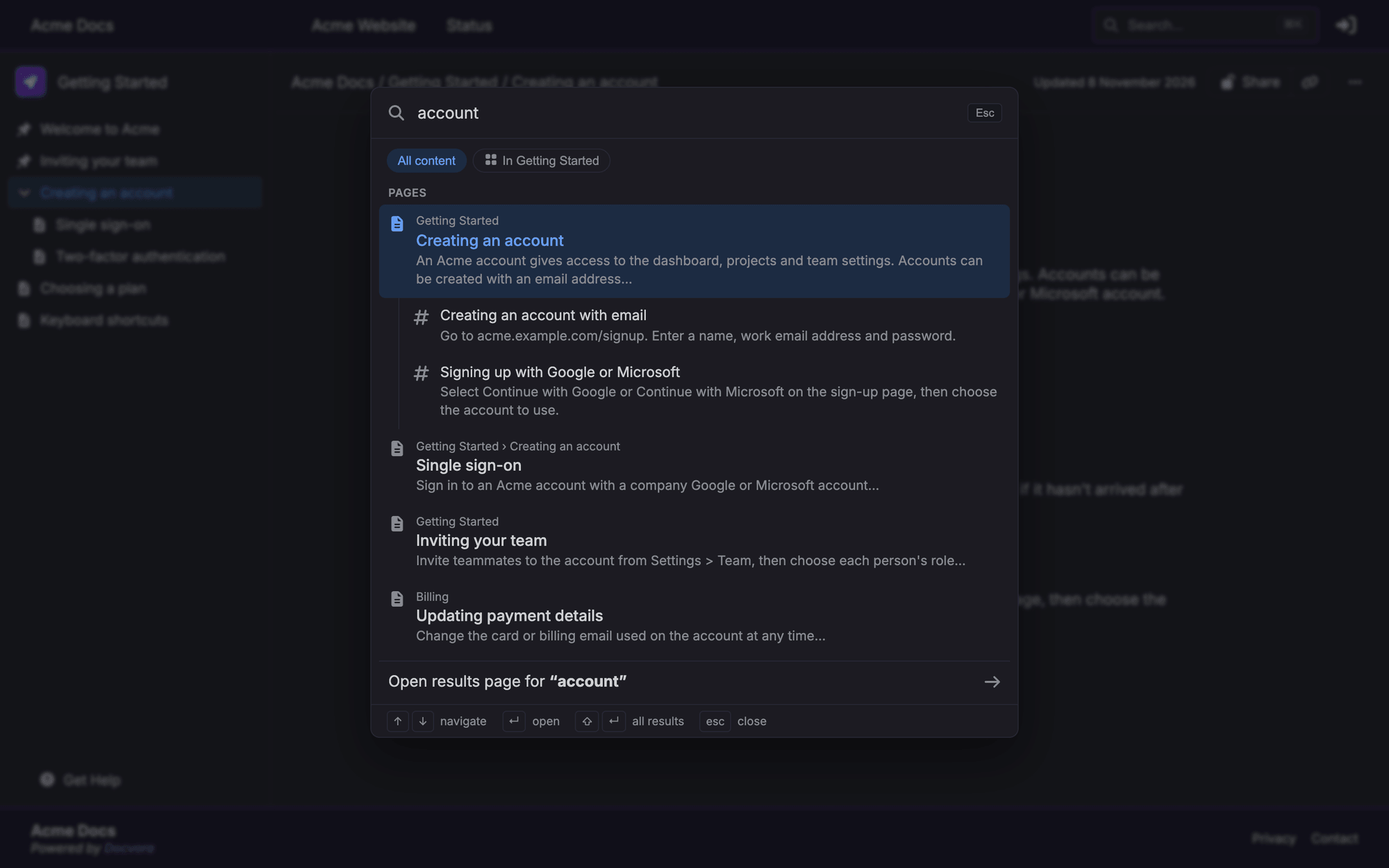
Using the search window
Results appear as the search is typed, grouped into Spaces and Pages. Each page result shows its space and parent pages, a short preview of the matching text, and any headings within the page that match, which open straight to that part of the page.
↑ and ↓ move between results.
Enter opens the selected result.
Ctrl + Enter (⌘ + Enter on a Mac) opens the selected result in a new tab.
Shift + Enter opens the full results page.
Esc closes search.
When search is opened with nothing typed, recent searches made in the same browser are listed for quick access. Each one can be removed from the list.
Searching one space
When search is opened from inside a space, buttons at the top of the window switch between All content and that space alone.
The search results page
The full results page lists every match, with more of each page's matching text. It can also be opened at /search on the site.
Results can be narrowed to one space using the space filter.
Words in "quotes" find an exact phrase.
When no page contains every word, Docvora shows the closest matches instead.
Possible spelling mistakes show a Did you mean suggestion.
What search includes
Search covers spaces and pages the reader can open, including:
space names and descriptions
page titles
page content
each page's search keywords
Hidden and archived spaces and pages aren't included. Restricted content only appears for readers with access to it.
Helping readers find pages
Staff can add Search Keywords to a page in its publish settings. Keywords are other words readers might search for, such as abbreviations or other names for a feature. They're used by search but never shown on the page.
On Pro and Enterprise plans, Search Insights shows what readers search for, which searches find nothing, and which results go unclicked. See Search Insights .