User Groups
User groups give a set of accounts the same permissions and access at once. Instead of changing every staff member's permissions one by one, a group such as "Support Team" or "Editors" can be created once and accounts added to it. Groups are also used to restrict spaces and pages, so that only members of chosen groups can read them. User Groups are available on Pro and Enterprise plans. Viewing groups requires the Groups View staff permission, and creating them requires Groups Create. Creating a group Navigate to Staff Panel > Groups & Users > Create Group. Enter a Group name. Optionally, enter an Email filter and choose whether the group is hidden. Tick the permissions members of the group should have. Select Create group. Group details Group name: shown on members' profiles and in the staff panel. Email filter: accounts with an email address containing this text are added to the group when it's created. A company domain such as @example.com works well. Hidden group: keeps the group's name off members' profiles. Hidden groups still work the same way. Group permissions Permissions are grouped into Spaces, Pages, Links, Groups, Integrations and General. A group used only to give readers access to restricted content doesn't need any permissions ticked. See Permissions Reference for what each permission allows. Adding and removing members Navigate to Staff Panel > Groups & Users > All Groups. Select the group. Under Add Group Member, search for an account by username or email, then add it. Members are listed under Group Members. Select the remove option beside a member to take them out of the group. How group permissions work An account can have its own permissions and belong to one or more groups. Docvora doesn't add these permissions together. It uses one set: either the account's own permissions or the permissions of one of its groups, whichever includes the higher-level permissions. The account's page in User Management notes this beside Edit Permissions. To keep permissions predictable: Give each staff member their permissions either directly or through one group, rather than both. Use groups without any permissions to control access to restricted spaces and pages. Using groups to restrict content Spaces and pages can be limited to one or more groups using Group Access when they're saved. Only members of those groups, and Administrators, can then open them. See Restricting Spaces & Pages to Groups for details. Deleting a group Groups can be deleted from Staff Panel > Groups & Users > All Groups. Members stay on the site but lose any permissions and access that came from the group. If a group is used to restrict a space or page, deleting it can leave that content without any group able to open it. Check Group Access on restricted content before deleting a group.
User groups give a set of accounts the same permissions and access at once. Instead of changing every staff member's permissions one by one, a group such as "Support Team" or "Editors" can be created once and accounts added to it.
Groups are also used to restrict spaces and pages, so that only members of chosen groups can read them.
User Groups are available on Pro and Enterprise plans. Viewing groups requires the Groups View staff permission, and creating them requires Groups Create.
Creating a group
Navigate to Staff Panel > Groups & Users > Create Group.
Enter a Group name.
Optionally, enter an Email filter and choose whether the group is hidden.
Tick the permissions members of the group should have.
Select Create group.
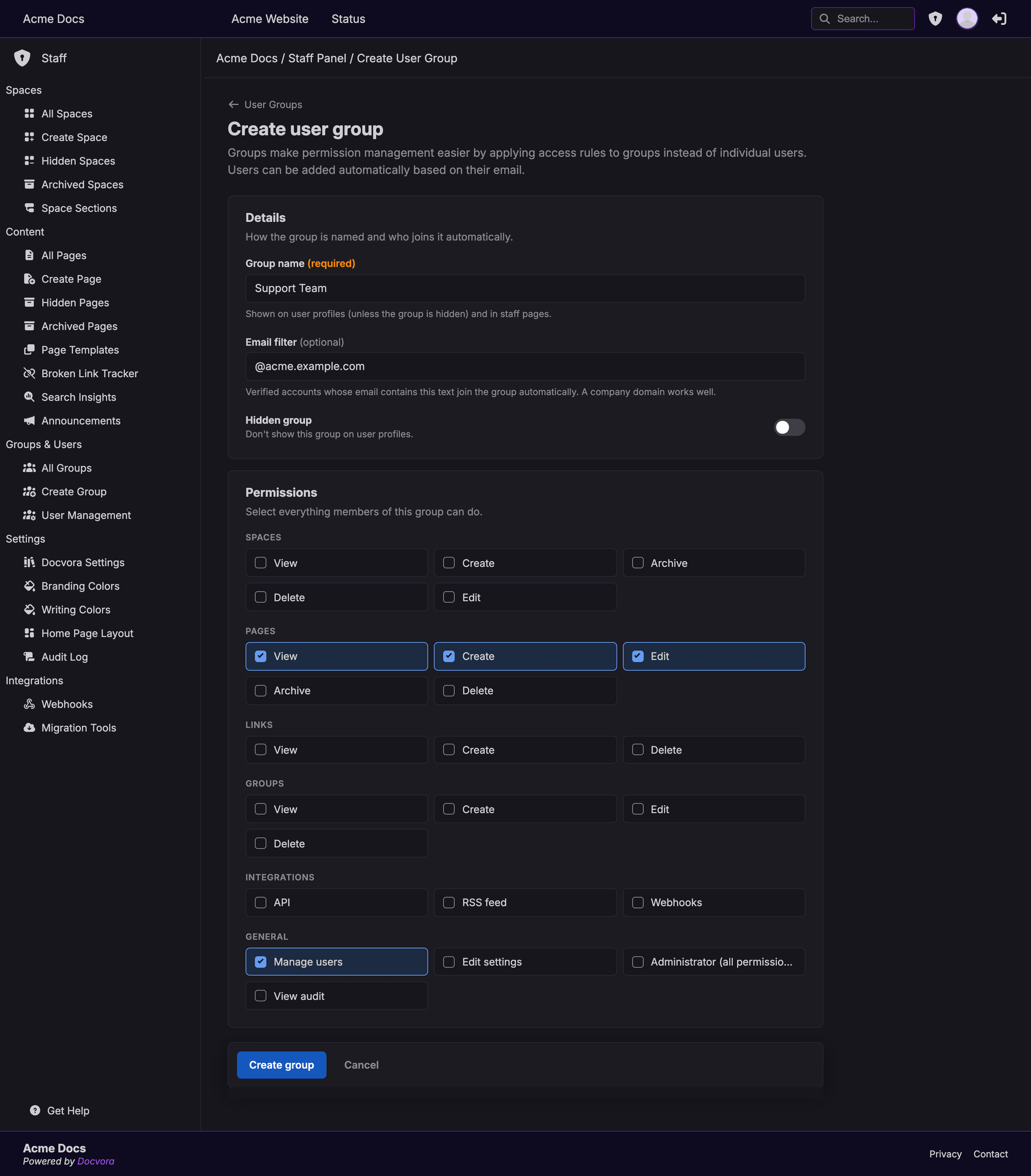
Group details
Group name: shown on members' profiles and in the staff panel.
Email filter: accounts with an email address containing this text are added to the group when it's created. A company domain such as
@example.comworks well.Hidden group: keeps the group's name off members' profiles. Hidden groups still work the same way.
Group permissions
Permissions are grouped into Spaces, Pages, Links, Groups, Integrations and General. A group used only to give readers access to restricted content doesn't need any permissions ticked.
See Permissions Reference for what each permission allows.
Adding and removing members
Navigate to Staff Panel > Groups & Users > All Groups.
Select the group.
Under Add Group Member, search for an account by username or email, then add it.
Members are listed under Group Members. Select the remove option beside a member to take them out of the group.
How group permissions work
An account can have its own permissions and belong to one or more groups.
Docvora doesn't add these permissions together. It uses one set: either the account's own permissions or the permissions of one of its groups, whichever includes the higher-level permissions. The account's page in User Management notes this beside Edit Permissions.
To keep permissions predictable:
Give each staff member their permissions either directly or through one group, rather than both.
Use groups without any permissions to control access to restricted spaces and pages.
Using groups to restrict content
Spaces and pages can be limited to one or more groups using Group Access when they're saved. Only members of those groups, and Administrators, can then open them.
See Restricting Spaces & Pages to Groups for details.
Deleting a group
Groups can be deleted from Staff Panel > Groups & Users > All Groups. Members stay on the site but lose any permissions and access that came from the group.
If a group is used to restrict a space or page, deleting it can leave that content without any group able to open it. Check Group Access on restricted content before deleting a group.