 Users, Groups & Permissions
User Management
User Management lists every account on the site and lets staff review, suspend or remove accounts, change their permissions and help with sign-in problems.
User Management is available on all Docvora plans and requires the Users Manage staff permission. Changing an account's permissions requires Advanced Permissions, available on Pro and Enterprise plans.
The users list
Navigate to Staff Panel > Groups & Users > User Management.
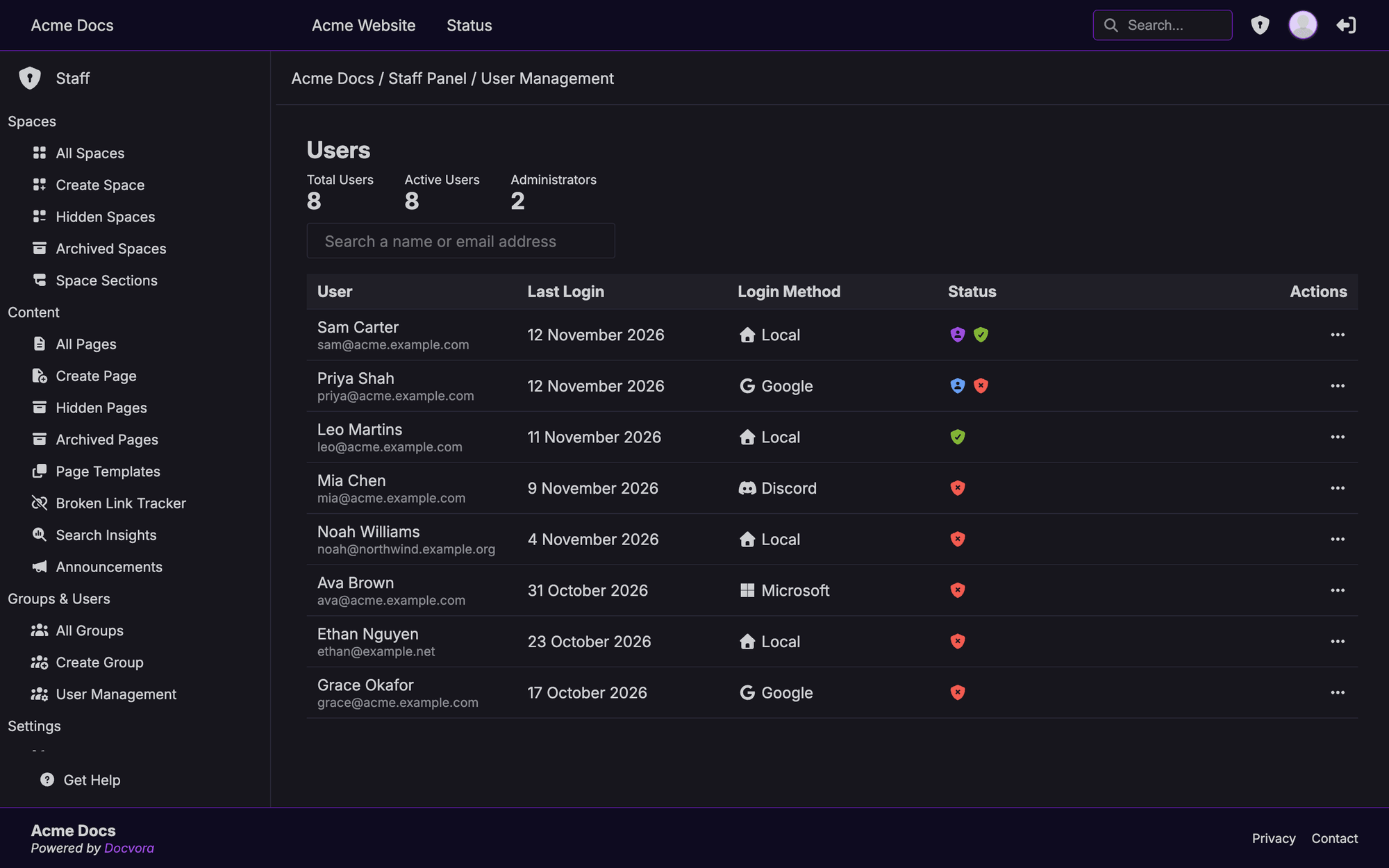
The top of the page shows the total number of users and how many are Administrators. Each account in the list shows:
User: the account's name and email address
Last Login: when the account last signed in
Login Method: whether the account signs in with an email and password, or with a provider such as Discord, GitHub, Google or Microsoft
Status: badges for Administrators and Master Administrators
The search box filters the list by name or email address. Select an account to manage it.
Managing an account
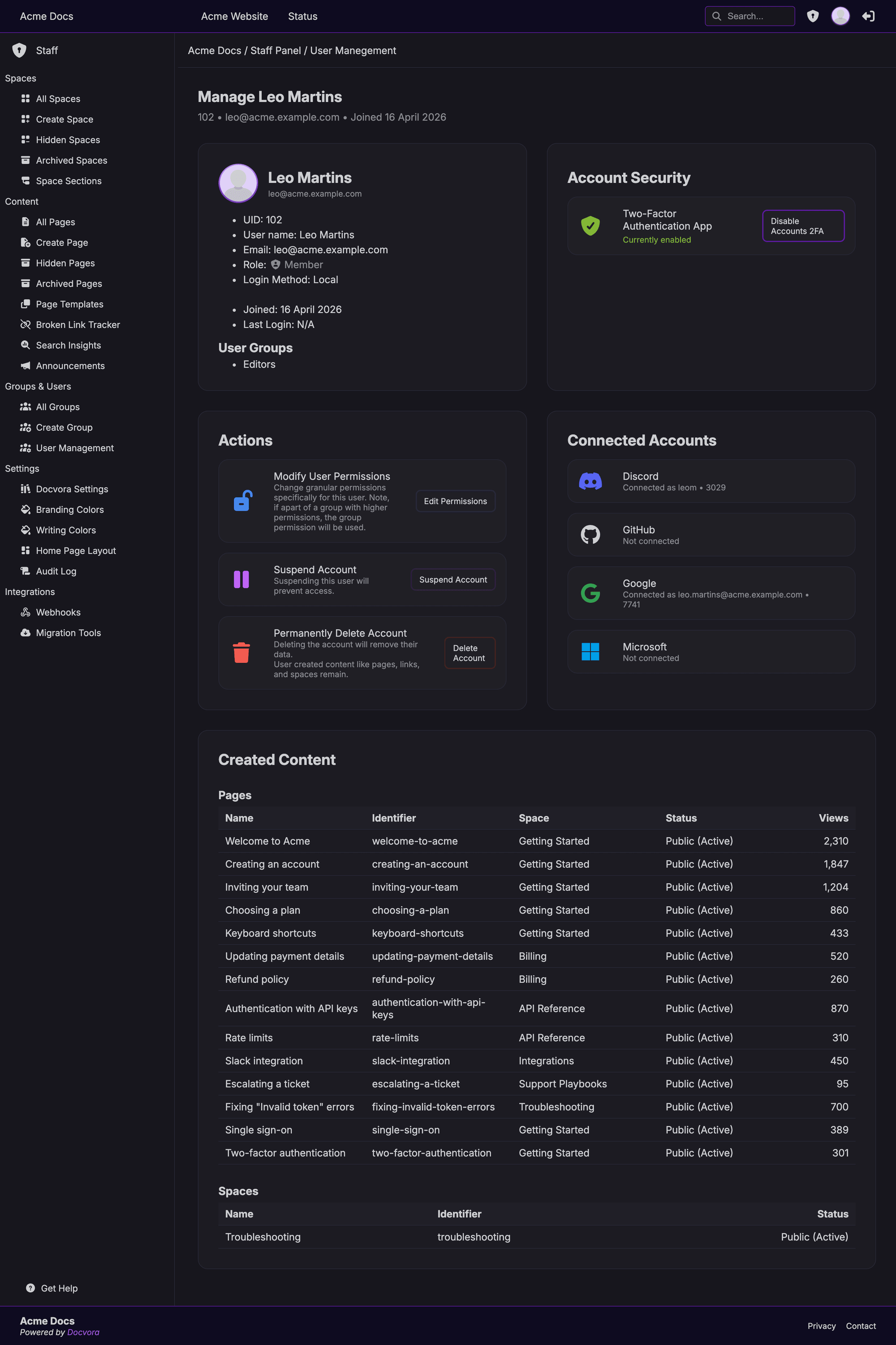
An account's page shows its details, groups, security settings, connected accounts and the content it has created.
Account Security
Shows whether the account has two-factor authentication (2FA) turned on.
If a user loses access to their authenticator app, contact Docvora Support to have 2FA removed from the account. The user can then sign in with their password and set up 2FA again.
Modify User Permissions
Select Edit Permissions to choose exactly what the account can do in the staff panel. See Permissions Reference for what each permission allows.
If the account belongs to a user group, the group's permissions may be used in place of the account's own. See User Groups for how this works.
Connected Accounts
Lists the sign-in providers linked to the account, such as Discord, GitHub, Google or Microsoft, with the name of each linked account.
Created Content
Lists the pages and spaces the account has created, with their status and view counts.
Suspending an account
Suspending an account stops it from signing in or using the site, without removing anything.
Open the account from User Management.
Under Actions, select Suspend Account.
The account's page shows a notice while it's suspended. To give access back, select Unsuspend Account.
Deleting an account
Open the account from User Management.
Under Actions, select Delete Account.
Deleting an account permanently removes the account and its personal data. Pages, spaces and links the account created stay on the site.
Deleting an account can't be undone. Suspend the account instead if access may need to be given back later.
Master Administrators
The Master Administrator is the account that owns the site. It can't be suspended or deleted from User Management, which protects the site from being locked out.
To change the Master Administrator, contact Docvora Support.