 Customisation & Publishing
Exporting Pages & Spaces
Pages and spaces can be downloaded as Markdown, PDF or Word files. Exports are useful for offline copies, printing, sharing with people outside the site, or moving content into another tool.
Exports are available on all Docvora plans. Anyone who can view a page or space can export it while page exports are turned on.
Exporting a page or space
Open the page or space.
Select the ⋯ button next to Share at the top of the page.
Select Export as Markdown, Export as PDF or Export as Word.
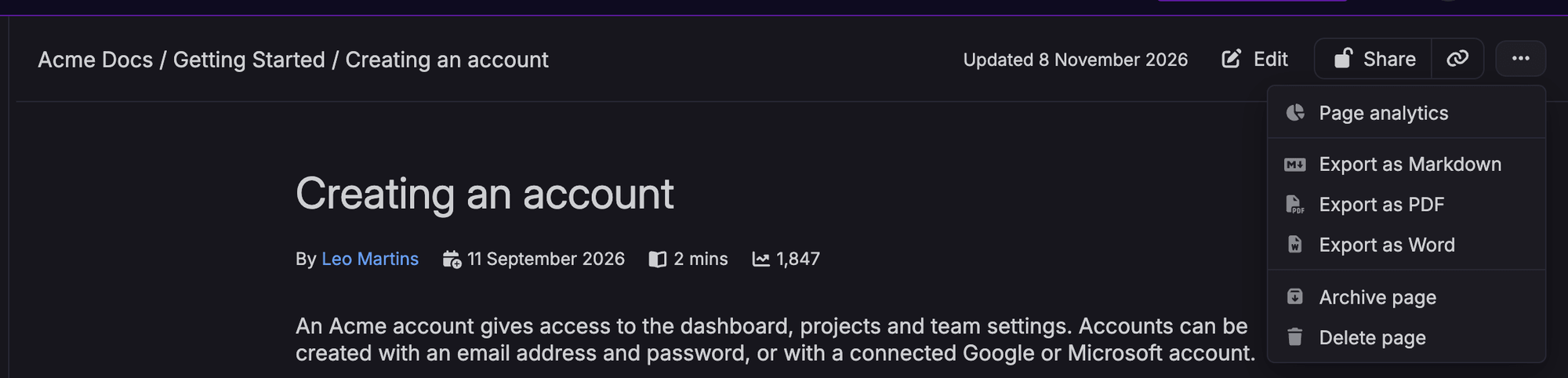
Exporting a space downloads the space's own home content. Pages inside the space are exported one at a time.
Export formats
Markdown (
.md): plain text formatting that works with most documentation tools, code repositories and AI tools.PDF: opens a print-ready copy of the page in a new tab, with the browser's print window. Choose Save as PDF as the printer to download it. The copy includes the page title, the site name and the page's address.
Word (
.docx): a document that opens in Microsoft Word, Google Docs and other word processors.
Exports always use the latest published content. Information panels, tables and code are kept in each format. Images uploaded to the site are included in Word files, while Markdown files link to the images on the site.
Turning exports off
Exports can be turned off for the whole site, for example on an internal knowledge base.
Navigate to Staff Panel > Settings > Docvora Settings.
Under Policies, turn off Allow page exports.
Select Save.
With exports turned off, the export options are removed from every page and space.
Exports and access
Exports follow the same access rules as the page itself. Restricted pages can only be exported by readers who can open them.
Export downloads are limited to 30 every 15 minutes for each visitor, to protect the site from automated downloads.
On Enterprise plans, exports by signed-in accounts are recorded in the Audit Log.
Exported files aren't indexed by search engines.
Exported Markdown and Word files can be brought back into Docvora with the Importing Documents feature in the editor.