 Spaces & Organisation
Managing Spaces
Spaces hold related pages together, such as a product's documentation, a set of guides or an internal handbook. Each space has its own address, icon, home content and page navigation.
Spaces are available on all Docvora plans. Creating a space requires the Spaces Create staff permission, and editing one requires Spaces Edit.
Creating a space
Navigate to Staff Panel > Spaces > Create Space.
Enter a name for the space at the top of the editor.
Write the space's home content. This is shown when readers open the space, above its list of pages.
Select Save... in the editor toolbar.
Choose the space's settings, then select Save.
The URL Identifier is filled in from the name as it's typed, and can be changed before saving.
Space settings
The Save Space window holds the settings for the space.
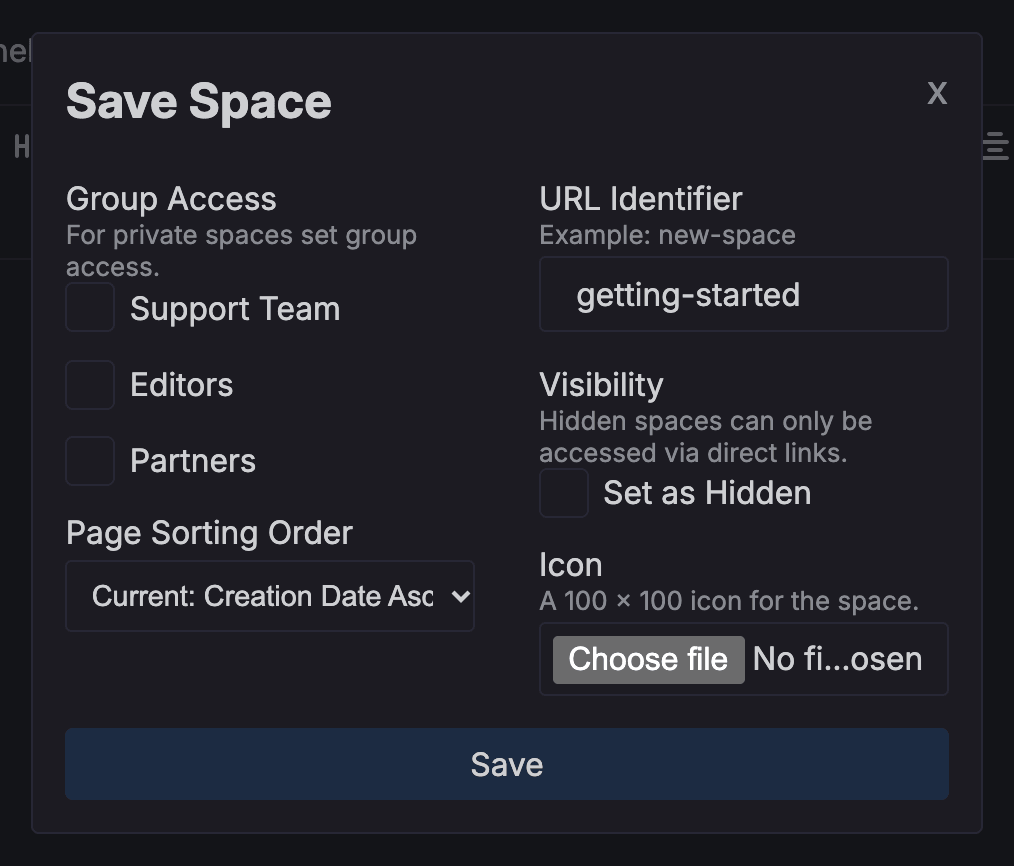
Group Access: limits the space to the selected user groups. Leave every group unticked for a space anyone can read. Group Access is available on Pro and Enterprise plans.
Page Sorting Order: the order pages are listed in the space's navigation. Pages can be sorted by name or by creation date, in ascending or descending order.
URL Identifier: the space's address, such as
getting-startedfor/spaces/getting-started.Visibility: Set as Hidden takes the space off the home page, search and navigation. Hidden spaces can still be opened with a direct link.
Icon: an image shown for the space on the home page. A square image of 100 x 100 pixels works best.
Pinned pages always appear at the top of the navigation, ahead of the sorting order.
Editing a space
Open the space. Spaces can be found from the home page or from Staff Panel > Spaces > All Spaces.
Select Edit at the top of the space.
Make any changes to the name or home content.
Select Save..., change any settings, then select Save.
Changing a space's address
When a space's URL Identifier is changed, Docvora automatically redirects the old address to the new one. Links to the space and to the pages inside it keep working.
The space home content
Each space has its own content area, written in the same editor as pages. It's shown at the top of the space, before readers choose a page.
The text of the home content is also used as the space's description wherever one is shown, such as space cards on the home page. Opening with a short sentence about what the space covers works well.
All Spaces
Staff Panel > Spaces > All Spaces lists every space that isn't hidden or archived, with its identifier, share count, status and creator. The status shows whether the space is public or restricted to groups.
From this list, a space can be archived or deleted. See Hidden & Archived Spaces for what each of these does.