 Spaces & Organisation
Pinned Pages
Pinning a page keeps it at the top of its space's navigation, ahead of every other page. It's a simple way to make sure readers see the most important pages first, such as a getting started guide or a list of known issues.
Pinned pages are available on all Docvora plans. Pinning a page requires the Pages Edit staff permission.
Pinning a page
Open the page and select Edit.
Select Publish... in the editor toolbar.
Under Visibility, tick Pin Page.
Select Save.
To unpin the page, untick Pin Page and save again.
Pages can also be pinned when they're first created.
Where pinned pages appear
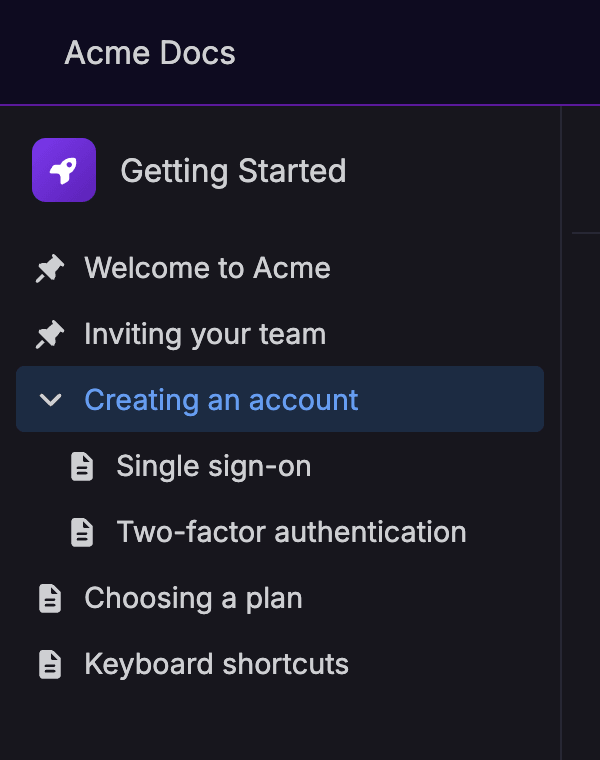
Space navigation: pinned pages are listed first in the space's sidebar and on the space's home, marked with a pin icon. When more than one page is pinned, they follow the space's page sorting order.
Home page: sites using Home Page Layouts can add a Pinned pages block, which lists pinned pages from every space, most viewed first. Home Page Layouts are available on Pro and Enterprise plans.
Pinning doesn't change a page's address, parent page or who can see it. Readers only see pinned pages they have access to.
Pinned child pages
A child page that's pinned moves to the top of the pages under its parent, rather than to the top of the whole space.