 Spaces & Organisation
Space Sections
Space sections group spaces under headings on the home page. A site with several products could show a "Getting started" section first, followed by a "Developers" section with API and integration spaces.
Sections only change how spaces are arranged on the home page. They don't change the spaces themselves or the pages inside them.
Space sections are available on all Docvora plans. Creating and editing sections requires the Spaces Create staff permission.
Creating a section
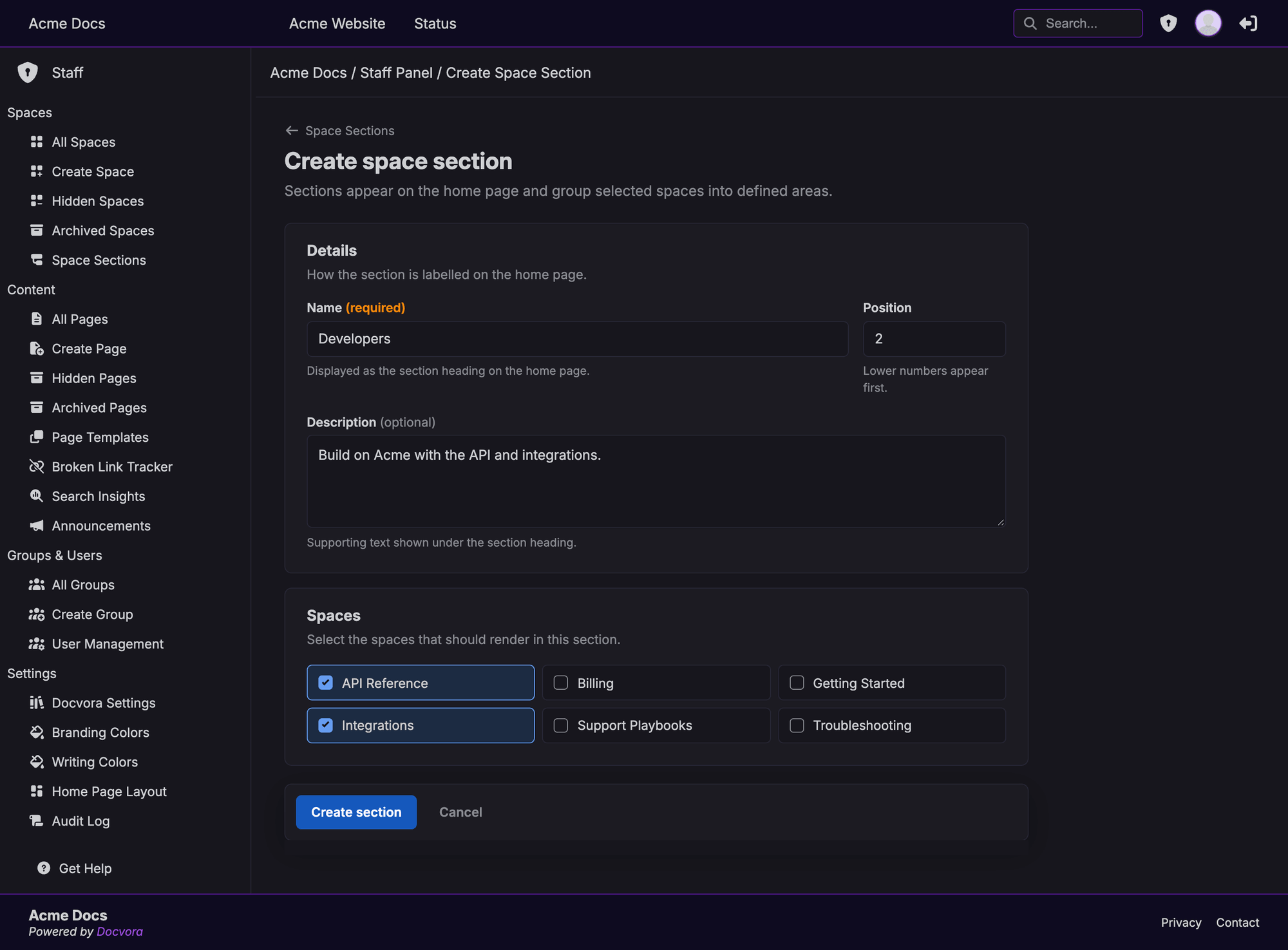
Navigate to Staff Panel > Spaces > Space Sections.
Select Create Section.
Fill in the section details.
Tick the spaces that belong in the section.
Select Create section.
Section details
Name: the heading shown above the section's spaces on the home page.
Position: the order of the section on the home page. Lower numbers appear first.
Description: optional supporting text shown under the heading.
Spaces: the spaces shown in the section. Hidden and archived spaces aren't listed.
How sections appear on the home page
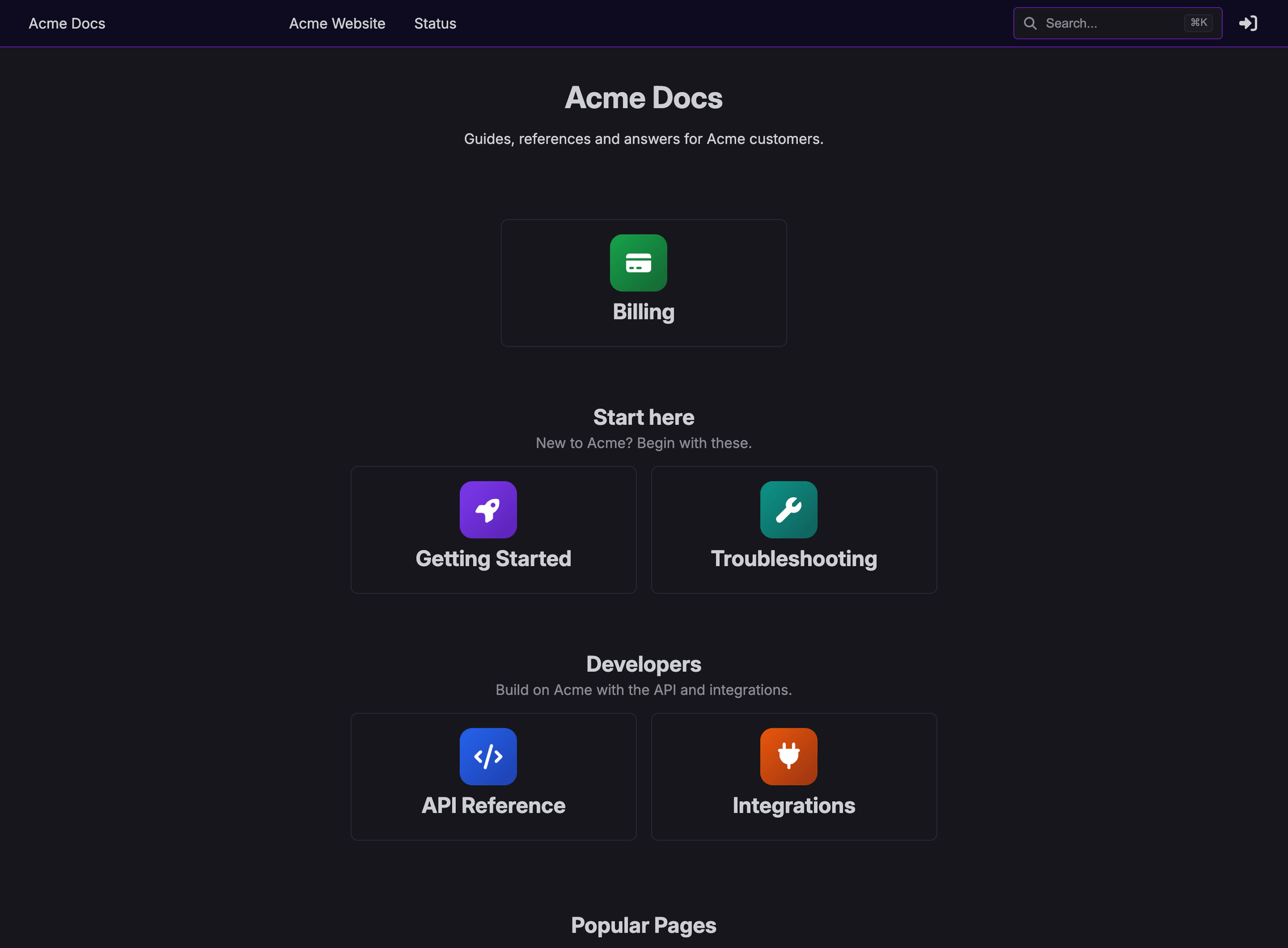
Sections are shown in order of their position, with sections that share a position ordered by name.
Spaces that aren't in any section are shown first, without a heading.
A space can be added to more than one section, and appears in each one.
A section is only shown when it contains at least one space the reader can open, so sections of restricted spaces stay out of sight for readers without access.
On sites using Home Page Layouts, a Spaces block can show all sections or only chosen ones. See Home Page Layouts for details.
Editing and deleting sections
Sections can be changed at any time from Staff Panel > Spaces > Space Sections.
Select the section's name, or the edit icon, to change its details or spaces.
Select the delete icon to remove the section. The spaces in it stay available and move back to the top of the home page.