 Getting Started
Understanding Spaces & Pages
Docvora organises documentation using spaces and pages. Spaces separate larger groups of documentation, while pages contain the individual articles and guides within them.
Table of Contents
Spaces
A space is the main container for a collection of related documentation.
Spaces can be used to separate documentation by product, topic, team or purpose. For example, a documentation site could contain separate spaces for:
Product documentation
Knowledge base articles
Developer documentation
Internal staff documentation
Changelogs
Each space can contain its own pages and page structure.
Spaces are displayed on the documentation site home page and provide an entry point into each collection of documentation.
At least one space must exist before a page can be created.
Pages
Pages contain the documentation content within a space.
Each page has its own address using the space and page path:
/:space/:pageFor example:
/knowledgebase/reinstalling-node-modulesPages are displayed in the navigation for their space and can be organised into a structure using nested pages.
Nested pages
Pages can be placed underneath other pages to create a clearer navigation structure.
A parent page can be expanded or collapsed in the space navigation to show its nested pages. This is useful when several pages belong to the same topic.
For example:
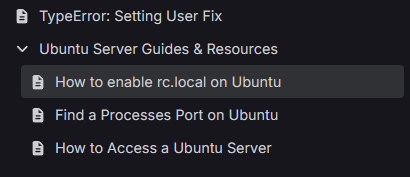
Source; https://docs.weblutions.com/spaces/knowledgebase/ubuntu-guides
Nested pages are primarily used for organisation. The nesting structure does not add additional levels to the page URL.
A nested page continues to use the standard path rather than including each parent page in the path
/:space/:pageDocvora currently supports and has been tested with page nesting up to four levels deep.
Space sections
Space sections organise spaces on the documentation site home page.
A section adds a heading and optional description above a selected group of spaces. This can be used to separate different types of documentation without creating another level of navigation.
For example, public documentation spaces could appear together near the top of the home page, while internal or restricted spaces could be displayed under a separate section.
When creating a space section, the following options are available:
Name: displayed as the section heading
Description: optional supporting text displayed below the heading
Position: controls the order sections appear, with lower numbers appearing first
Spaces: selects which spaces are displayed within the section
Space sections only affect how spaces are grouped on the home page. They do not change the structure of pages within a space.