 Enterprise & Security
Discord Single Sign-On Configuration
The Discord SSO allows accounts to be created or linked with Discord accounts for a more seamless login. Before beginning make sure a Discord Developer application is made on the Discord Developer portal or by following the below steps.
Setting up SSO requires Administrator permissions on Docvora and an Enterprise or custom plan.
Creating a Discord Developer Application
Login to the Discord Developer portal.
Create an Application.
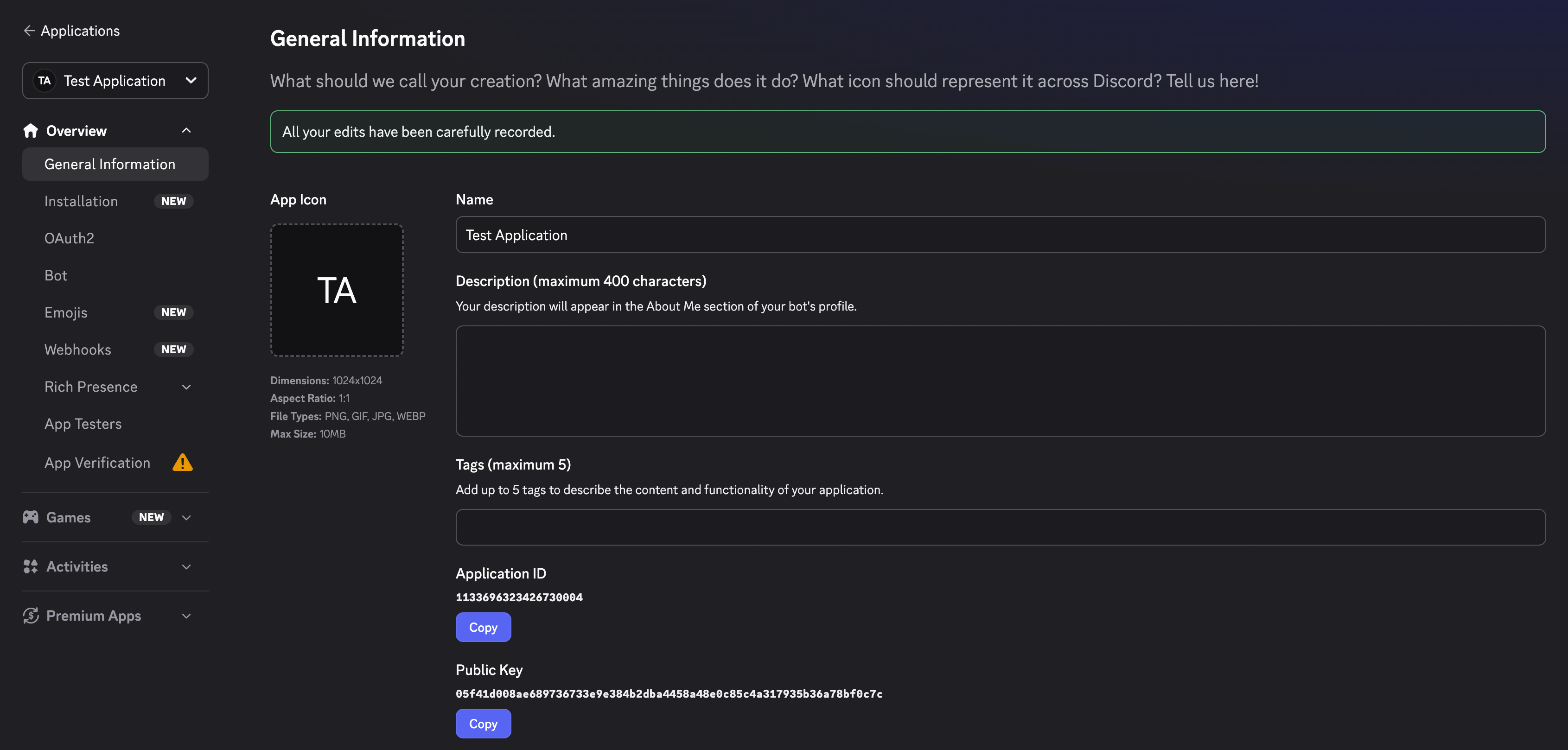
Navigate to the applications OAuth2 tab.
Copy the Client ID along with the Client Secret and set aside for now.

Set a redirect for Docvora by using the below URL format.
https://${DOMAIN}/auth/discord/callbackReplace ${DOMAIN} with your domain.

Click save changes
Configuring Docvora
Enter the Docvora staff panel on your instance and navigate to the below menu.
Staff Panel > Docvora Settings > Login Methods > DiscordEnable the SSO method with the checkbox.
Enter the earlier saved client ID and secret.
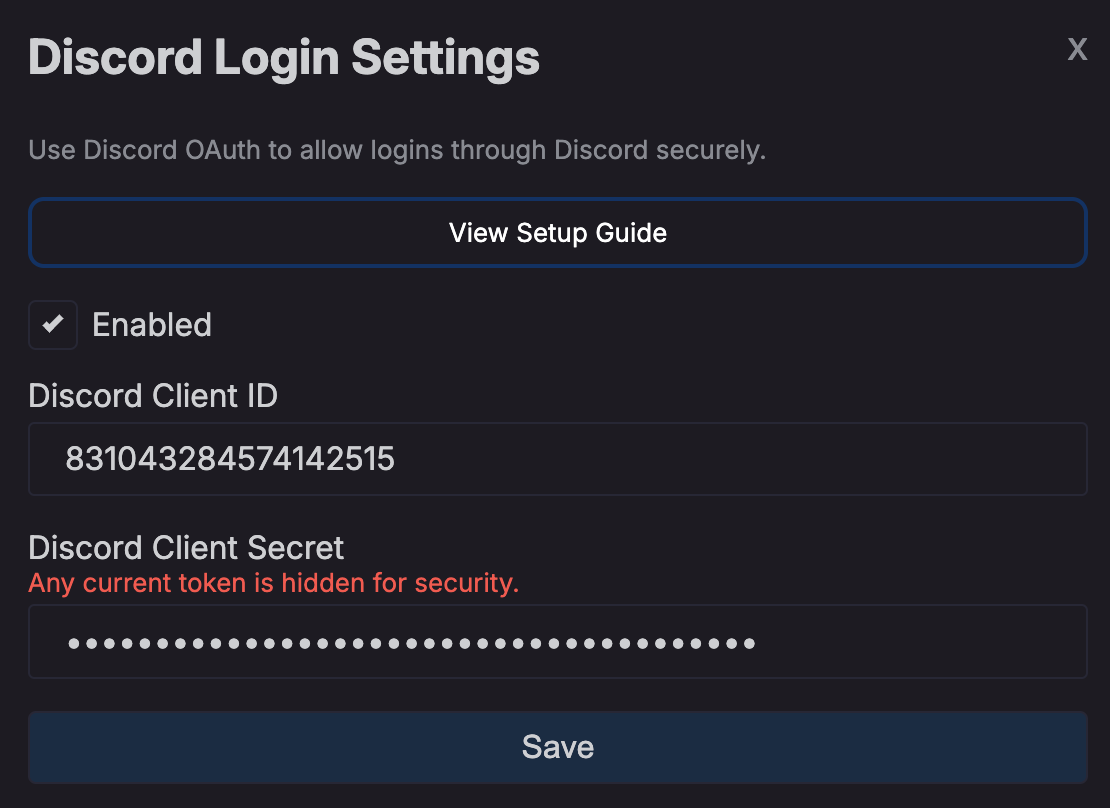
Click save.
Your docvora instance will internally restart services to enable the login method. This may take up to a minute to reflect on the login page.