 Enterprise & Security
Google Single Sign-On Configuration
The Google single sign-on option allows the option for users to login with Google into Docvora. With nearly everyone having a Google account, users that login or link their Google account is more common among other single sign-on options.
Setting up SSO requires Administrator permissions on Docvora and an Enterprise or custom plan.
Creating a Google Developer Application
Navigate to the Google Cloud Dashboard.
Create a new project for Docvora.
Navigate to Credentials and Create an OAuth client ID.
If prompted, an OAuth consent screen may need to be completed, if so, choose external as the user-type. If selecting scopes ensure the two below are chosen
userinfo.emailuserinfo.profile
Fill out the form information making sure to select Web application.
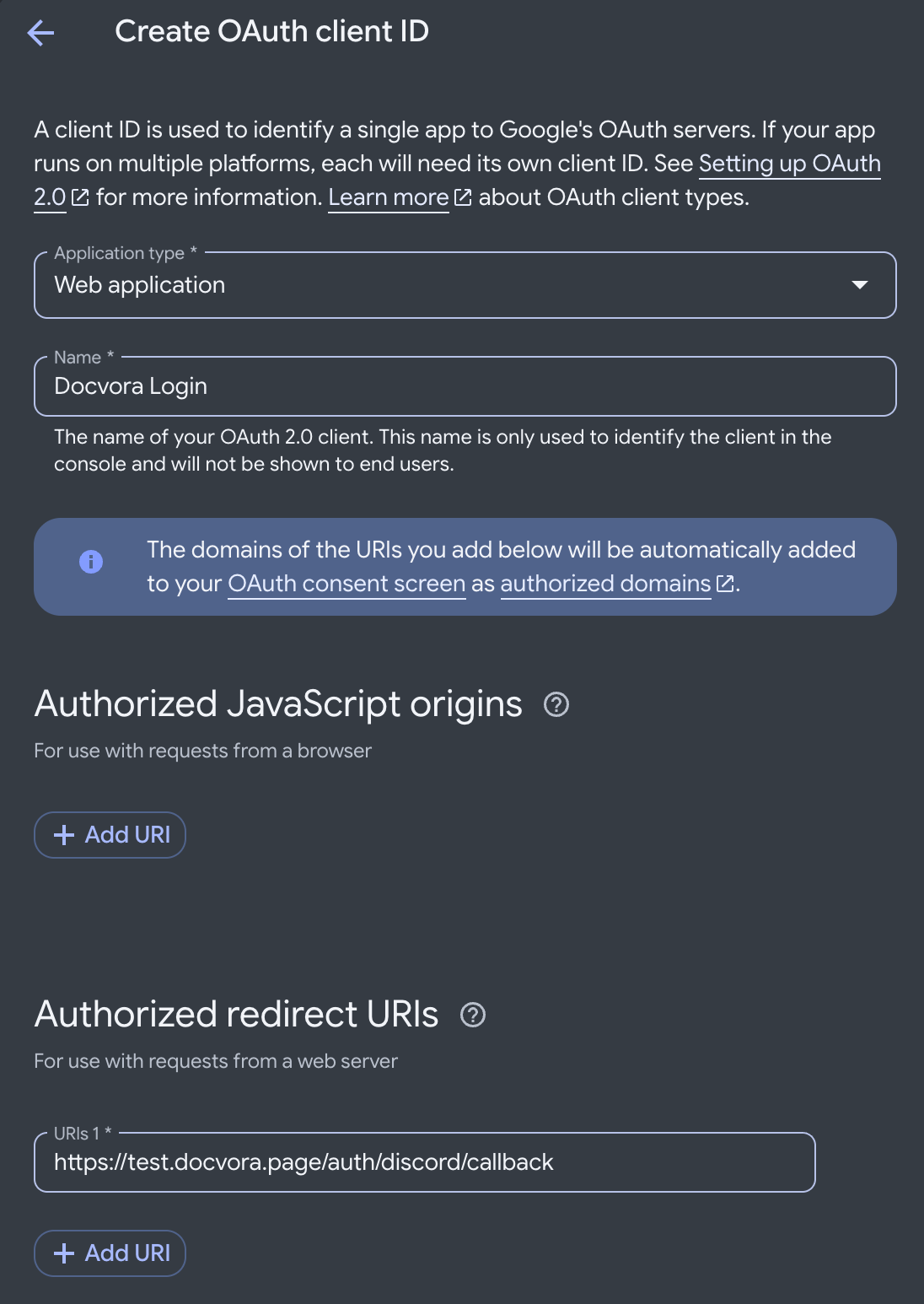
Set a redirect for Docvora by using the below URL format.
https://${DOMAIN}/auth/google/callbackClick create to save the credentials.
Copy the Client ID along with the Client Secret and set aside for now.
Configuring Docvora
Enter the Docvora staff panel on your instance and navigate to the below menu.
Staff Panel > Docvora Settings > Login Methods > DiscordEnable the SSO method with the checkbox.
Enter the earlier saved client ID and secret.
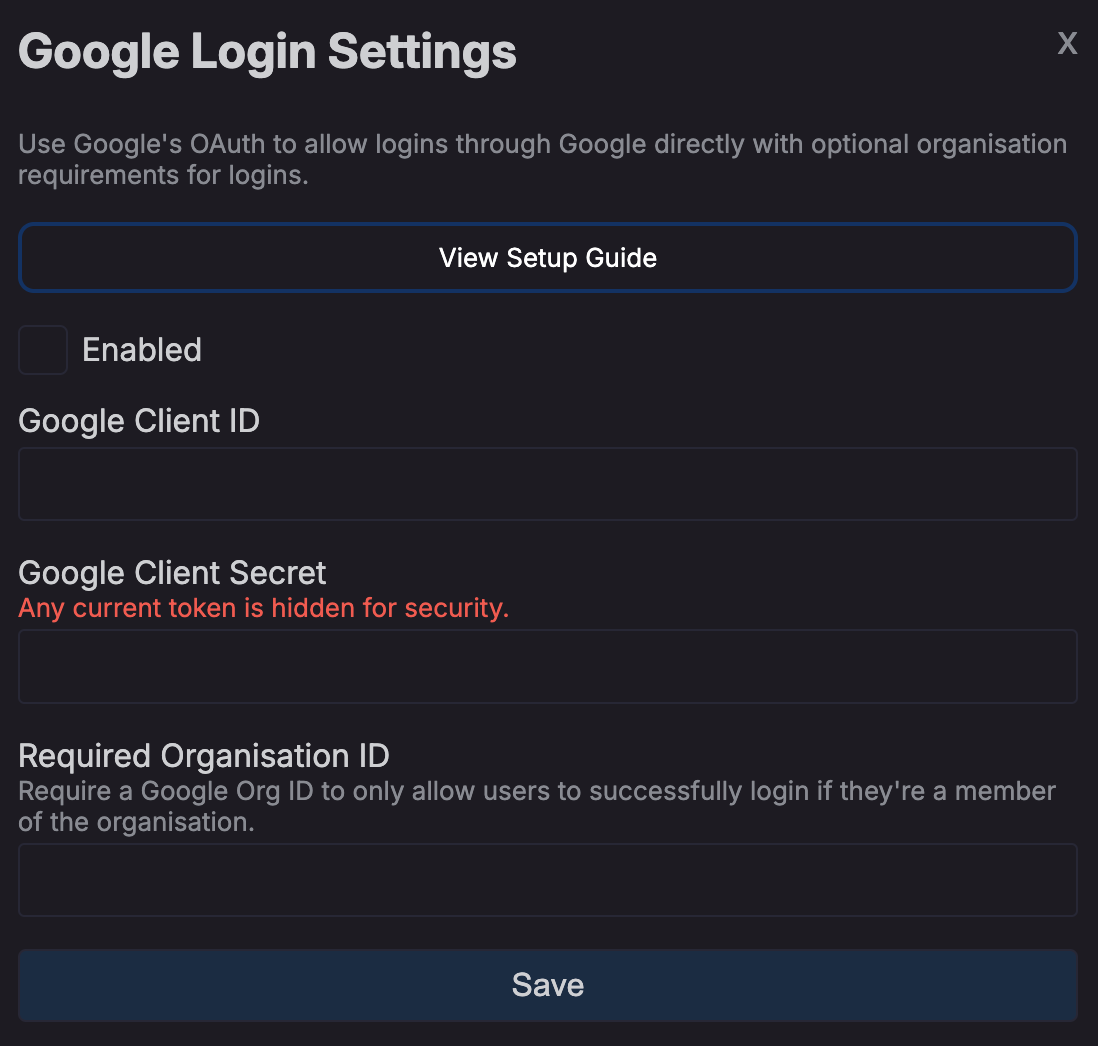
Click save.
Your docvora instance will internally restart services to enable the login method. This may take up to a minute to reflect on the login page.
Setting a Required Google Organisation
Navigate to the OAuth Consent Screen settings and go into the audience tab.
Set the user type to internal
Save the changes
Login to the Google Workspace Admin console.
Navigate to Account > Account settings from the left sidebar.
Copy the customer ID
Paste the copied ID into the Docvora Organisation ID field for the Google SSO settings.
Click save.
Your docvora instance will internally restart services to enable the login method. This may take up to a minute to reflect on the login page.