 Enterprise & Security
Microsoft Single Sign-On Configuration
Like with Google, many people around the world and businesses have or use Microsoft. To setup Microsoft single sign-on on Docvora the below steps can be followed.
Setting up SSO requires Administrator permissions on Docvora and an Enterprise or custom plan.
This guide is aimed at users without Microsoft experience of a proper Microsoft developer account. However, the steps remain mostly the same for the setup of the OAuth section.
Creating a Microsoft Developer Entra ID
Go to: https://entra.microsoft.com
If you’re prompted to sign in, sign in with your
outlook.comor business account.You’ll may see a message like “You don’t have access to this resource.”
That’s fine — you just need to create a tenant. Follow the sub-steps tp create a tenant or skip to step four.Visit this direct link to the tenant creation page: https://entra.microsoft.com/#view/Microsoft_AAD_IAM/ActiveDirectoryMenuBlade/~/CreateTenant
Choose:
Azure Active Directory type
Organization name: (whatever you want)
Initial domain: e.g.docvoratenant.onmicrosoft.com
Country/region: pick your countryWait 30–60 seconds for it to create.
Once done, click your profile picture (top-right) → Switch tenant → select your new tenant.
Now you’ll have full access to:
App registrations
Certificates & secrets
Enterprise applications
Navigate to the App registrations page.
Select register an application.
Fill out the name, type, and callback URI.
After creating:
Copy Application (client) ID
Copy Directory (tenant) ID
Go to Certificates & secrets → New client secret → copy the
valueimmediately.
Configuring Docvora
Enter the Docvora staff panel on your instance and navigate to the below menu.
Staff Panel > Docvora Settings > Login Methods > DiscordEnable the SSO method with the checkbox.
Enter the earlier saved client ID and secret.
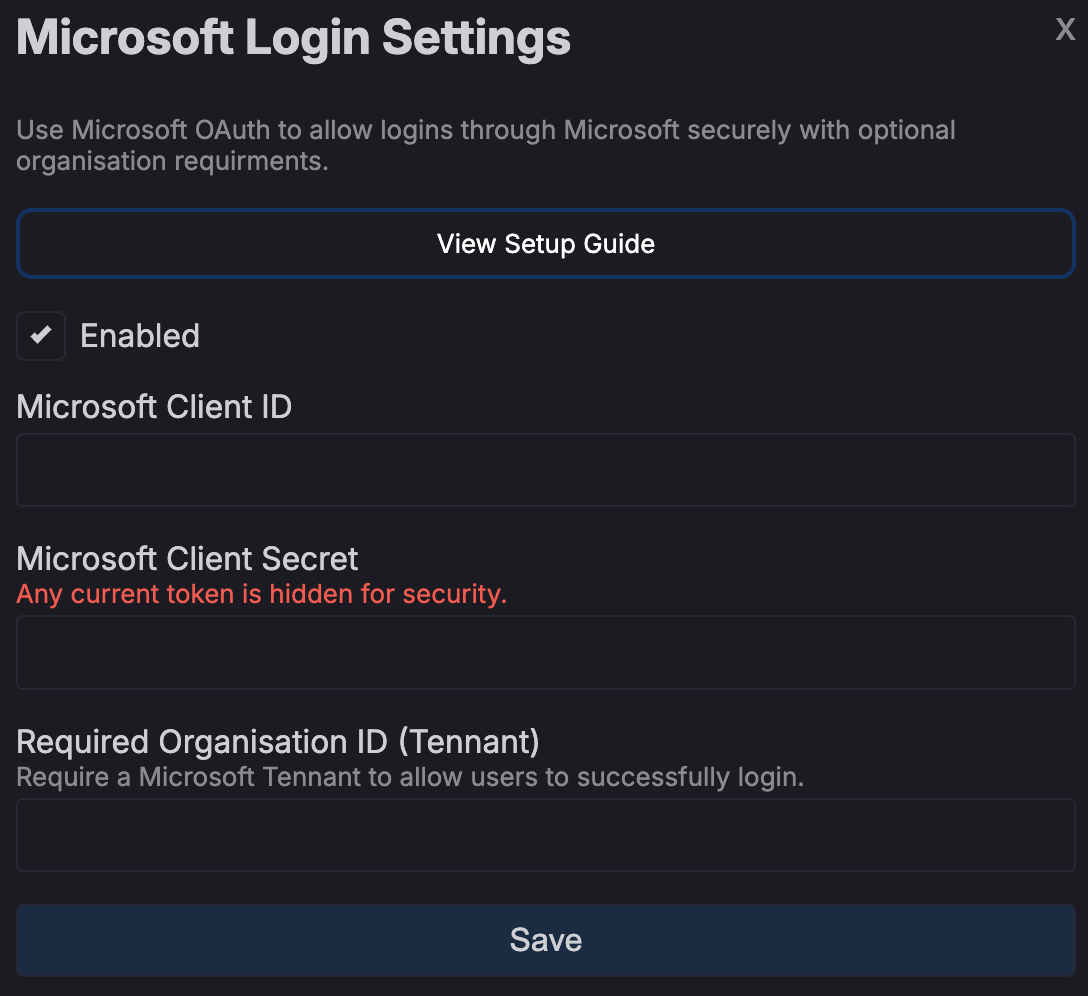
Click save.
Your docvora instance will internally restart services to enable the login method. This may take up to a minute to reflect on the login page.
Setting a Required Microsoft Tenant
Navigate to the Entra home page - https://entra.microsoft.com.
Copy the tenant ID.
Paste it into Docvora's Microsoft SSO settings.
Click save.
Your docvora instance will internally restart services to enable the login method. This may take up to a minute to reflect on the login page.