 Enterprise & Security
Requiring Two-Factor Authentication
Two-factor authentication (2FA) adds a six-digit code from an authenticator app to the sign-in process, so a stolen password alone isn't enough to get into an account. Any account can turn on 2FA from its account settings. Enterprise sites can also require it for every account.
Requiring 2FA is available on Enterprise plans and requires the Edit Settings staff permission. Turning on 2FA for a single account is available on all plans.
Turning on the requirement
Navigate to Staff Panel > Settings > Docvora Settings.
Under Policies, turn on Require two-factor authentication (2FA).
Select Save.

The requirement applies straight away, including to staff who are already signed in.
What users see
When 2FA is required, any account created with an email and password that hasn't set up 2FA is taken to the 2FA setup page. The rest of the site, including the staff panel, can't be used until setup is finished.
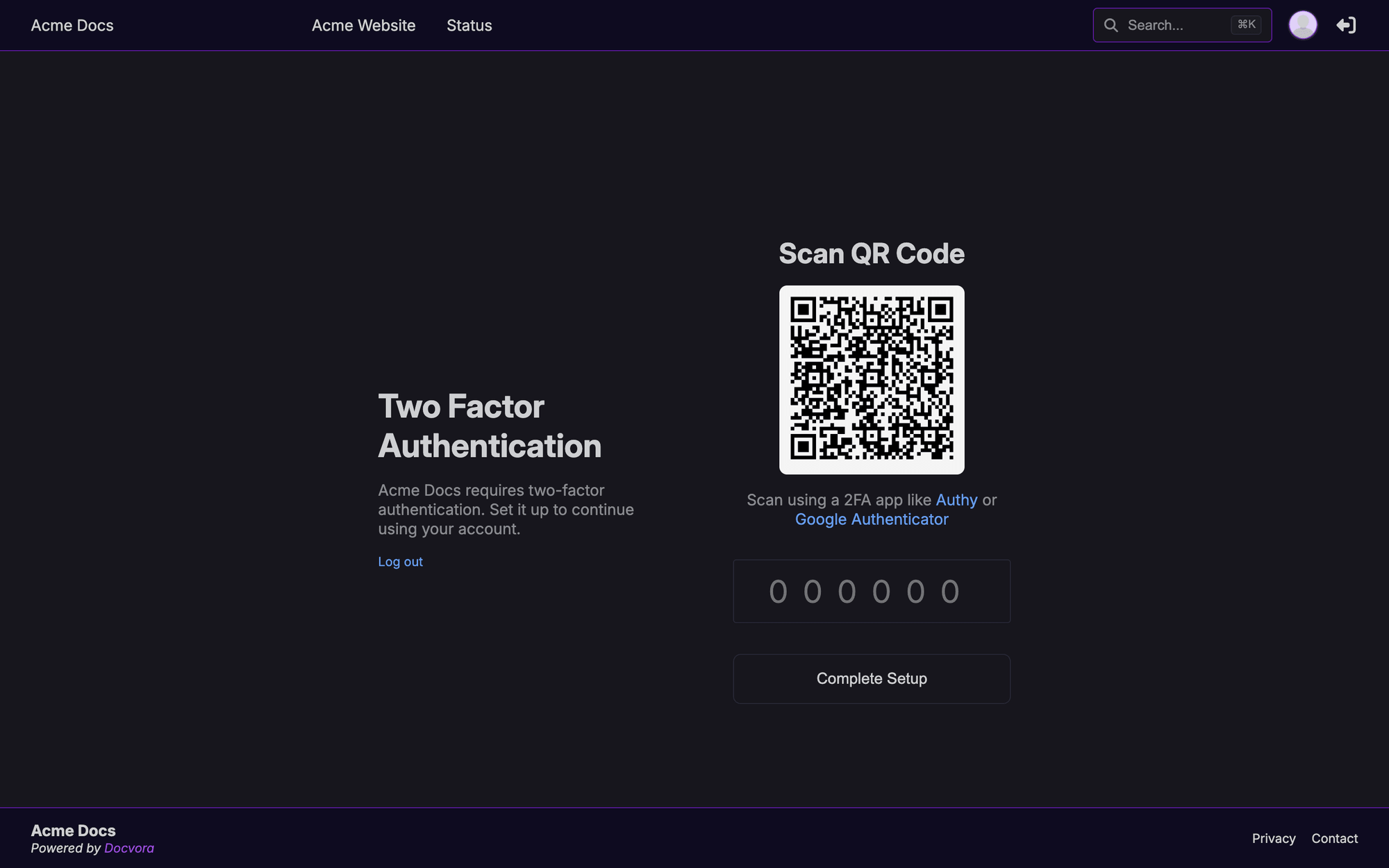
To finish setup:
Scan the QR code with an authenticator app such as Google Authenticator, Microsoft Authenticator or Authy.
Enter the six-digit code shown in the app.
Select Complete Setup.
Docvora then emails a recovery code to the account's email address. It's worth keeping this email somewhere safe.
From then on, each sign-in asks for a code from the app after the password.
While 2FA is required, users can't turn it off from their account settings.
Accounts that use single sign-on
Accounts created by signing in with Discord, GitHub, Google or Microsoft aren't asked to set up 2FA in Docvora. These accounts rely on the security of their sign-in provider, so any 2FA or security policy should be set up with that provider.
Accounts created with an email and password still need 2FA, even if a provider has been connected to them later.
For organisations that want every account protected by their own identity provider, single sign-on with an organisation requirement can be combined with turning off email and password sign-in. See Single Sign-On (SSO) and Login Methods.
Lost authenticator apps
If a user loses access to their authenticator app, contact Docvora Support to have 2FA removed from the account. The user can then sign in with their password and is asked to set up 2FA again.
Turning off the requirement
Turning off Require two-factor authentication (2FA) stops new setups from being forced. Accounts that already have 2FA keep it, and each user can turn it off from their own account settings if they choose.
On Enterprise plans, changes to this setting are recorded in the Audit Log.