 Content & Editing
Docvora Editor
The Docvora Editor provides a rich text editing experience for creating and updating page and space content.
Alongside standard text formatting, the editor supports custom blocks, slash commands, tables, images, links, code blocks, page-specific blocks and other Docvora content types.
Page content is automatically saved as a draft while editing. Publishing remains a manual action, allowing changes to be prepared without immediately replacing the published page.
Editor overview
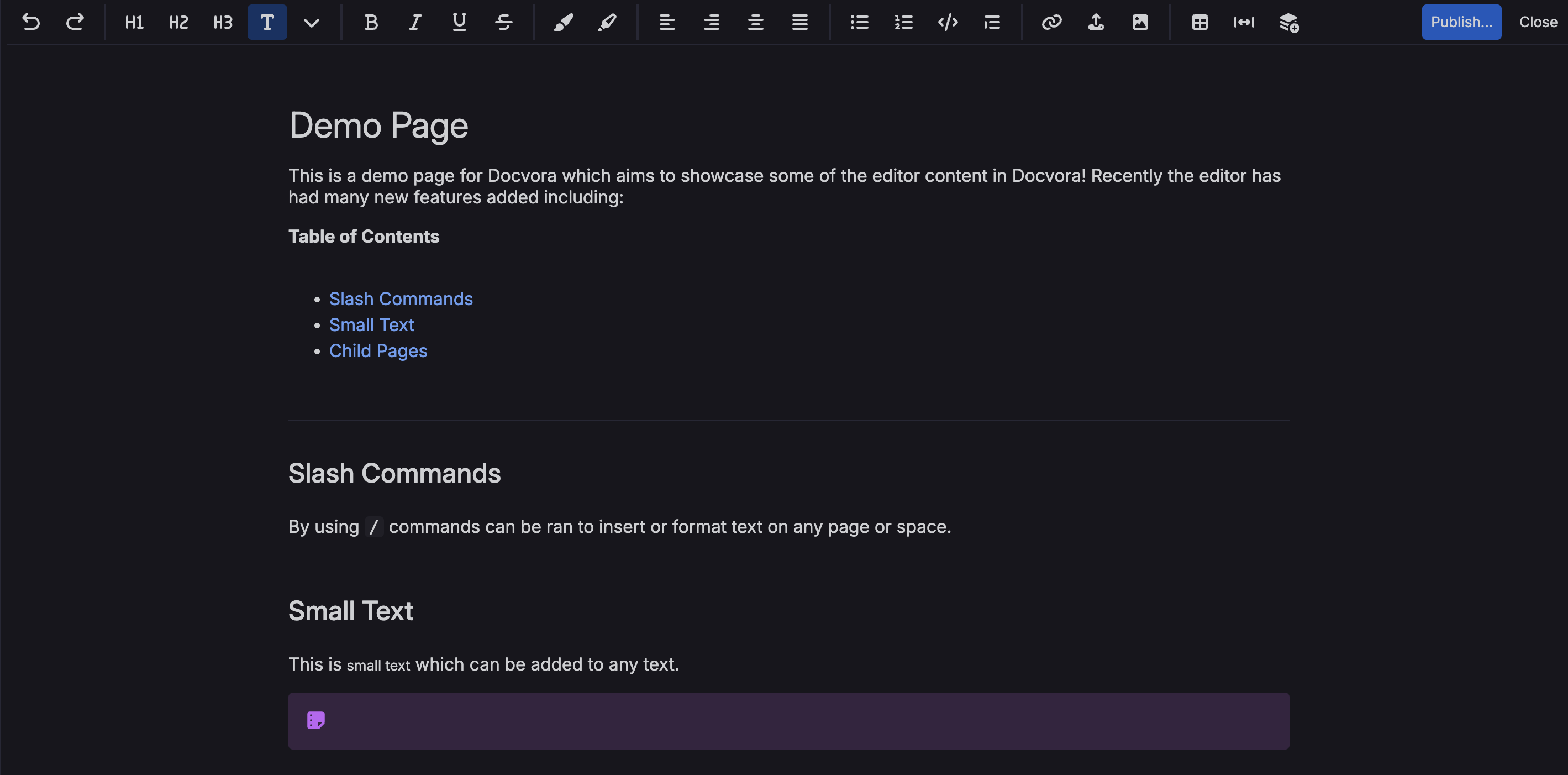
The main editor consists of the content area and a toolbar across the top of the page.
The content area displays the page in a format close to its published appearance, allowing text and other content to be edited directly.
Pressing Enter creates a new paragraph.
Some content blocks can also be moved by dragging them with the mouse.
Page settings are handled separately from the main editing area. Selecting Publish opens the page settings where details such as the space, parent page, URL identifier and visibility can be reviewed before publishing.
Toolbar
The toolbar provides quick access to commonly used editing and formatting controls.
Available controls include:
Undo
Heading levels
Paragraph and text styles
Bold
Italic
Underline
Strikethrough
Text styling and highlighting
Text alignment
Bulleted lists
Numbered lists
Code formatting
Links
File uploads
Images
Tables
Page width
Additional content blocks
The active formatting for the current cursor position is highlighted in the toolbar. For example, when editing bold text, the Bold control is highlighted.
The toolbar does not currently use a separate floating menu when text is selected.
Additional content can also be inserted through slash commands, providing another way to access many editor blocks.
Keyboard controls
Most editor actions have an associated keyboard shortcut.
Common shortcuts follow the standard controls used by the operating system, such as Ctrl + B on Windows and Linux or Command + B on macOS for bold text.
The shortcut assigned to a toolbar action can be viewed by hovering over its button.
Standard arrow keys can be used to move through text. Block movement is generally handled using the mouse where dragging is supported.
The editor also recognises several typed commands:
/opens the slash command menu.#opens the page link prompt where any page can easily be mentioned/linked.
Hash also inserts heading levels if space is typed right after.@opens the user mention prompt.---inserts a horizontal line.
These typed commands differ from traditional Markdown behaviour in some cases.
Draft saving
Changes made to a page are automatically saved as a draft while editing.
Draft saving allows unfinished changes to remain available when returning to the page later. The published page is not replaced until Publish is selected.
Editor width
The toolbar includes a page width control that allows the editing and published content area to use a wider layout.
This setting can be changed on individual pages where additional horizontal space is useful, such as pages containing larger tables or other wide content. Wide page view can be toggled using width icon in the toolbar (imaged below).

Reading time
Reading time is calculated when a page is saved and can be displayed to readers where the setting is enabled. Reading time is based on the saved page content rather than being continuously recalculated while editing.